Category: Raspberry Pi

  • A streaming pile of Pi

    Continued from here.

    First page here.

    11. Setting up your uPNP media server

    A uPNP media server allows you to stream videos from your Pi to any device that can talk to it.  A lot of tellies do this these days, along with PS3s, XBoxs, iPads, tablets and your PC.  With a server on your Pi, you can watch what you have downloaded on any compatible device in your house without the hassle of moving files or memory sticks about.  Let’s rock.

    You could try doing an apt-cache search for “upnp server” if you want the practice in finding suitable packages, or I could tell you that the one you want is Mediatomb.  So sudo apt-get install mediatomb

    naich@raspberrypi ~ $ sudo apt-get install mediatomb
    Reading package lists... Done
    Building dependency tree 
    Reading state information... Done
    The following package was automatically installed and is no longer required:
     mtools
    Use 'apt-get autoremove' to remove it.
    The following extra packages will be installed:
     javascript-common libavcodec53 libavformat53 libavutil51 libdirac-encoder0
     libexif12 libffmpegthumbnailer4 libgsm1 libjs-prototype libmozjs185-1.0
     libmp3lame0 libmysqlclient16 libnspr4 libnspr4-0d libschroedinger-1.0-0
     libspeex1 libswscale2 libtag1-vanilla libtag1c2a libtheora0 libva1 libvpx1
     libx264-123 libxvidcore4 mediatomb-common mediatomb-daemon mysql-common
     wwwconfig-common
    Suggested packages:
     apache2 httpd speex mysql-client postgresql-client
    The following NEW packages will be installed:
     javascript-common libavcodec53 libavformat53 libavutil51 libdirac-encoder0
     libexif12 libffmpegthumbnailer4 libgsm1 libjs-prototype libmozjs185-1.0
     libmp3lame0 libmysqlclient16 libnspr4 libnspr4-0d libschroedinger-1.0-0
     libspeex1 libswscale2 libtag1-vanilla libtag1c2a libtheora0 libva1 libvpx1
     libx264-123 libxvidcore4 mediatomb mediatomb-common mediatomb-daemon
     mysql-common wwwconfig-common
    0 upgraded, 29 newly installed, 0 to remove and 0 not upgraded.
    Need to get 11.4 MB of archives.
    After this operation, 25.2 MB of additional disk space will be used.
    Do you want to continue [Y/n]?

    It’s the same as when you installed Transmission.  Apt tells you what it is going to install and you say Yes.  It nips off, installs everything and sets it up.  It doesn’t need much configuring either.  It’ll work straight away but we’ll make a little adjustment or two.  Or three if you own a Samsung TV.  Our Samsung TV could connect to the server OK but wouldn’t play the videos.  If you have the same problem, the fix for it is here.  Read what it says and add the lines to the config file after you have made the following changes:

    The configuration file for Mediatomb is /etc/mediatomb/config.xml (note that it’s in /etc, as usual) and is a bit unusual in that it’s an XML file.  Let’s not pussyfoot around here.  XML is a horrible way to present data and to use it in a configuration file is a crime against humanity.  I could rant on for a while but I will spare you that – you have enough problems, being faced with a configuration file in XML format.  So, open it up with sudo nano /etc/mediatomb/config.xml and let’s get started.  As you can see, it’s nice and easy to read – if you are a robot…

    <?xml version="1.0" encoding="UTF-8"?>
    <config version="2" xmlns="http://mediatomb.cc/config/2" xmlns:xsi="http://www.$
         Read /usr/share/doc/mediatomb-common/README.gz section 6 for more
         information on creating and using config.xml configration files.
        -->
      <server>
        <ui enabled="yes" show-tooltips="yes">
          <accounts enabled="yes" session-timeout="30">
            <account user="mediatomb" password="mediatomb"/>
          </accounts>
        </ui>
        <name>MediaTomb</name>
    ... and so on ...

    Straight away, you should see something that needs changing.  The user interface web page has a default username and password, which is bad.  Change that user=”mediatomb” password=”mediatomb” to something else.  Or, if you are feeling brave, you can change “accounts enabled” to “no” and you won’t have to log on at all. This is a bad idea if you want to access it from outside your home network.

    On the line after “<server>” add <port>49152</port> this forces it to use that port rather than pick one of its own choosing.  Done that?  CTRL-X, [Y]es you want to save, return to save it over the top of the original.

    I’ve set up a download of a config.xml file with all those changes applied to it.  Feel free to replace yours with it.  The username is “mediatomb”, password is “wibble”.  Please change them on your system.

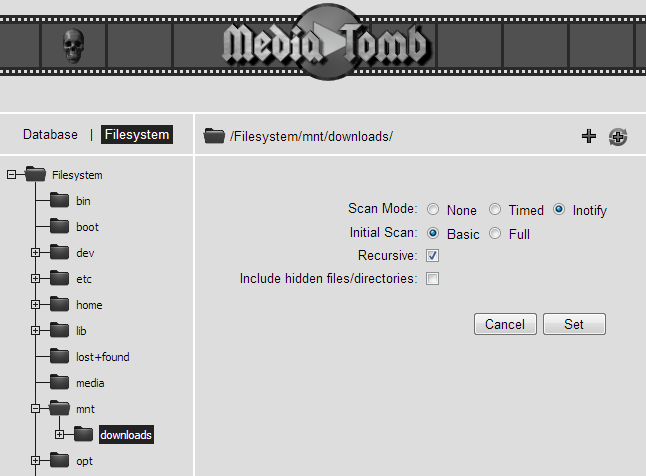
    A quick sudo service mediatomb restart and you are done with the setting up.  To use the web interface, point your browser at http://your_pi_ip:49152 , log in (if you have to) and you should see this:

    or something like that anyway.  To get it to index your media, click on the “Filesystem” tab (next to “Database”), then the cross next to “mnt” (to expand that branch) and “downloads” to highlight it.  Over on the right, there will appear a swirly cross which says “Add as autoscan dir” when you hover over it.  Click on it to select that directory as one you want Mediatomb to scan.  Choose “Inotify” for Scan mode, “Basic” for Initial scan and check “Recursive”.  Click on “Set”, it will perform a basic scan and then when you click on the “Database” tab on the left, all your stuff should appear under the “Video” branch.  Documentation for the user interface is available for those who want to tinker.

    And that’s it.  Your Pi should appear  as  a media server when your TV/PS3/whatever does a scan.  Any new downloads should appear automatically but be aware that if you swap the external storage, it might not be rescanned when you plug it back in, so you will have get Mediatomb to do it manually.

    Put the kettle on, make a cup of tea and enjoy your videos.  That’s pretty much it for now.  There’s one more chapter of useful things to know about Linux.

    Continued here.

  • Memory sticks and torrents

    Continued from here.

    First page here.

    9. Thanks for the memories

    For this chapter you’ll need a memory stick or a pre-formatted external hard drive with a USB connection.  As we are going to be putting videos on it, the larger the better.  Got one?  Good.  Stuff it up your Pi’s USB port.  There should be whirrings and flashings (subject to lights or motors being present) as something happens. If we were using Windows, the external storage would appear as a drive letter.  Linux, however, lets you choose where to make it appear.  Linux has a single directory tree under which external storage and internal storage is placed, or “mounted” in Linux terminology.  Remember when I said to change the “Download to: ” directory setting in Transmission to /mnt/downloads”?  That’s where we will be mounting your external storage.  You might have questions at this point, but let’s get your external storage mounted before we come to them. A while ago I was blethering on about how bad it was to be root and how it was a good idea that you couldn’t log in as root.  Yes, well, I was probably slightly exaggerating to reinforce a point.  Sometimes you have to do lots of stuff as root and all that sudoing starts getting boring.  You can make yourself root until you exit, by doing sudo -s.  Try it:

    naich@raspberrypi ~ $ sudo -s
    root@raspberrypi:/home/naich#

    Notice a few things here – the “$” has changed to “‘#” to indicate you are now root, the “~” has changed to “/home/your_name because it is no longer your home directory and you are now “root@raspberrypi”.  You now have absolute power over the entire operating system.  Let it go to your head for a while, cackle like Emperor Palpatine and let the hate flow through you. I like to do this occasionally when I become root and I find it best get it out of my system before I do anything else.  Back to normal again?  Good. First we need to create the directory to mount the external storage on.  The mount location has to already exist in order to mount something on it.  Type in the commands in bold:

    root@raspberrypi:/home/naich# cd /mnt
    root@raspberrypi:/mnt# ls -l
    total 0
    root@raspberrypi:/mnt# mkdir downloads
    root@raspberrypi:/mnt# ls -l
    total 4
    drwxr-xr-x 2 root root 4096 Aug 21 13:24 downloads
    root@raspberrypi:/mnt#

    You change your working directory to /mnt (this is traditionally where you mount things), see what is already there (nothing), create a directory called “downloads” with “mkdir” and then you list it. Quick aside here – see that “drwxr-xr-x” bit?  That shows you what sort of file it is (“d” means directory) and the permissions for it, showing who is allowed to do what to it.  Read the this page up to and including section 2.1.1to understand permissions or try and battle through my very short explanation here:

    There are 3 lots of “rwx”s, the first for the owner of the file, the second for the specified group (it is the second “root” in the illustration above, shown here in italics) and the third is for “others”, i.e. everyone else who is not the owner or a member of the group.  In each “rwx”, “r” means “read”, “w” means “write” and “x” means “execute” if it is a program or “enter” if it is a directory.  A dash (“-“) means a lack of permission for that function, so in the above example, the first 3 letters after “d” (“rwx”) mean the owner (root) can “r”ead, “w”rite and “x”enter the directory.  A member of the “root” group (the next 3 letters) can “r”ead and “x”enter the directory but not “w”rite any files to it, as the “w” is missing.  The same “r-x” permissions apply to everyone else, as shown in the last 3 letters.

    Now we need to find the external storage.  The Linux kernal (the core of the operating system) will have interrogated your external storage to find out what it was when you plugged it in, and then set it up as a block device, making it available in the /dev directory as if it were a file.  As it is, it is an interface that you can read and write to it but not in any way that is useful to you.  It is now up to you to mount that block device on the filesystem so you can treat it as a branch on the directory tree.  Have a look in /dev and you’ll see a whole load of files that are interfaces to devices.  One of those files is your external storage, but which one?  There are a few ways to find it, but the easiest is with the command fdisk -l:

    root@raspberrypi:/mnt# fdisk -l
    
    Disk /dev/mmcblk0: 3965 MB, 3965190144 bytes
    4 heads, 16 sectors/track, 121008 cylinders, total 7744512 sectors
    Units = sectors of 1 * 512 = 512 bytes
    Sector size (logical/physical): 512 bytes / 512 bytes
    I/O size (minimum/optimal): 512 bytes / 512 bytes
    Disk identifier: 0x000714e9
    
            Device Boot      Start         End      Blocks   Id  System
    /dev/mmcblk0p1            8192      122879       57344    c  W95 FAT32 (LBA)
    /dev/mmcblk0p2          122880     7744511     3810816   83  Linux
    
    Disk /dev/sda: 8019 MB, 8019509248 bytes
    20 heads, 16 sectors/track, 48947 cylinders, total 15663104 sectors
    Units = sectors of 1 * 512 = 512 bytes
    Sector size (logical/physical): 512 bytes / 512 bytes
    I/O size (minimum/optimal): 512 bytes / 512 bytes
    Disk identifier: 0x665e2cdf
    
       Device Boot      Start         End      Blocks   Id  System
    /dev/sda1   *          80    15663103     7831512    b  W95 FAT32
    root@raspberrypi:/mnt#

    There’s a lot of information there, but the important bits are where it says “Disk /dev/…”, showing the size of the hardware and the column under “Device” which shows the names of the block devices each partition has been assigned. “Disk /dev/mmcblk0” is the SD card – see how it is split into two partitions, one large (3810816 blocks, each block being 1K making it about 3.8GB) and one small (57344 blocks)?  The other “Disk” (it will probably be “/dev/sda”) is your external storage, with its single partition appearing as “/dev/sda<number>”.  In my case it’s “sda1 “and 8019 MB big – it’s an 8GB memory stick with its partition having 7831512 1K blocks.  Yours might have a different number – “sda4”, for example, in which case use that rather than “sda1”.  Now let’s mount the /dev/sda1 device to /mnt/downloads with mount /dev/sda1 /mnt/downloads:

    root@raspberrypi:/mnt# mount /dev/sda1 /mnt/downloads
    root@raspberrypi:/mnt# ls -l downloads
    total 188
    drwxr-xr-x 3 root root   4096 Jul 12 17:07 Acad Course
    -rwxr-xr-x 1 root root 181574 Jul 12 16:44 Chamber Assembly.wmv
    drwxr-xr-x 2 root root   4096 Aug 15 19:31 vids
    root@raspberrypi:/mnt#

    The contents of the memory stick may vary.  Note how the owner and group are “root”?  That is because it was root who mounted the device.  Now we know it works, we can make it so the drive is automatically mounted at boot time, writeable by the user “debian-transmission”, who runs the transmission-daemon program. We need to find out his user ID and group ID though – type id -u debian-transmission and make a note of the user ID:

    root@raspberrypi:/mnt# id -u debian-transmission
    106
    root@raspberrypi:/mnt#

    It’s 106 for me.  Then do the same for the group ID with id -g debian-transmission and make a note of that number – 109 for me. We need to unmount it before we remount it for real.  This is the equivalent of safely removing it – unwritten data will be flushed and no more can be sent to it.  The command is umount /mnt/downloads – that’s umount, not unmount.  If you are doing this as a normal user later on, remember to sudo the command.

    root@raspberrypi:/mnt# umount /mnt/downloads/
    root@raspberrypi:/mnt# ls -l downloads/
    total 0
    root@raspberrypi:/mnt#

    Never remove a storage device without unmounting it first.  If you do, a boxing glove on a spring will shoot out of the top of your Pi and punch you in the nose.  Well, it should.  You can lose data and corrupt the file system by yanking it out without unmounting.  You might also be wondering what would happen to anything that was already in the /mnt/downloads directory when your device was mounted.  The contents are preserved but are not accessible while the device is mounted over the top of them.

    Now let’s automate the mounting of the external storage.  At boot time the file /etc/fstab is read to see what needs to be mounted.  Edit that file now with nano /etc/fstab and you will see this:

    proc            /proc           proc    defaults          0       0
    /dev/mmcblk0p1  /boot           vfat    defaults          0       0
    /dev/mmcblk0p2  /               ext4    defaults,noatime  0       0
    # a swapfile is not a swap partition, so no using swapon|off from here on, use $

    Any line starting with “#” is a comment for the benefit of humans and ignored by the computer.  This goes for most configuration files.  Have a guess at what the first two columns are.  If you are really keen, try reading the man page for fstab with man fstab. The first is the block device name, the second is where it is mounted, the third is what sort of filesystem it is and the fourth is options.   The other two are used for maintenance and can be left out or set to 0.  You will want to add this line at the end in order to automatically mount your external storage:

    /dev/sda1       /mnt/downloads  auto    defaults,uid=106,gid=109  0       0

    Replace the “uid=106” and “gid=109” with the numbers you found earlier for user ID and group ID.  Save and exit with CTRL-X and then answering “Y” and hit return to save it with the same file name. Now mount the drive with mount -a. This mounts all the devices in /etc/fstab in the same manner as if it was booting up. Finally, check everything is hunky-dory:

    root@raspberrypi:/mnt# mount -a
    root@raspberrypi:/mnt# ls -l total 4
    drwxr-xr-x 4 debian-transmission debian-transmission 4096 Jan  1  1970 downloads

    Smashing.  I should also point out that Linux distributions like Ubuntu do all this automatically, popping up a file manager window showing the contents of the memory stick as soon as it is plugged in.  But we are operating at a lower level than that.

    Now stop being root by tying exit:

    root@raspberrypi:/mnt# exit
    exit
    naich@raspberrypi ~ $

    Now we are back to normal.  You can stop cackling.  Your Pi is set up to mount the memory stick whenever it boots, so you don’t need to do anything else other than remember to sudo umount /mnt/downloads if you take the stick out and sudo mount -a when you put it back in.

    10. Torrent something!

    Now open up the Transmission web interface by pointing your browser at http://your_pi_ip_address:9091 and click on the “Open” icon.  Put this URL for a perfectly legal video torent in it:

    http://www.frostclick.com/torrents/video/animation/Big_Buck_Bunny_1080p_surround_frostclick.com_frostwire.com.torrent

    Put it in the “URL” box and click open.  Magnet links also work in this box. If you have found a Magnet link from a perfectly respectable web site, right click and choose “copy link location” and paste it into the “URL” box in Transmission.  If you have downloaded the .torrent file, upload it to Transmission.

    You can check on the status of the torrent by clicking on it and then clicking the “i” icon for more info on it.  I got a “unregistered torrent” error, but DHT found enough peers to get it all.

    Sometimes, with a popular torrent with lots of fast peers, the poor little Pi can get a bit overwhelmed with all the traffic hammering its ports.  It’s like a DOS attack and can bring down the Pi if it is bad enough.  So I like to limit the number of connections by going to the web panel, opening up settings by clicking on the spanner, going to the “Peers” tab and setting a limit of 20 peers per torrent and 100 peers overall.  I also set speed limits of 400kB/s for up and downloads in the “Speed” tab.

    If you are having trouble connecting to any peers, make sure that “Use port forwarding from my router” is checked in “Network” tab of the settings.  This page gives some more info about setting up your router.  If your internet connection is fast you should have a high definition video file on your memory stick before you know it.  I’ll leave you to find out more about how Transmission works by the age-old method of clicking things to see what happens.

    Most tellies these days have USB ports on them which you can lob a stick into.  If yours does, unmount and lob your stick.  Our telly also has an ethernet port on it, for streaming video from a uPNP media server.  Wouldn’t it be good to have a uPNP video server on the Pi?  I think we could probably manage that in the next chapter.

    Continued here…
  • Torrents of Pi

    Continued from here

    First page here

    8.  Installing a Bittorrent Client

    I don’t know about you, but I want to install a Bittorrent client on your Pi, and I’ll tell you why.  If your PC uses a wireless router and you use Bittorrent, you will probably find that the Bittorrent traffic over your network utterly clobbers your PC’s connection, making the internet virtually unusable.  You also have to leave your PC on overnight when downloading large files, like Linux distributions or the many legal video torrents that exist.  Furthermore, once your torrent has finished, you have to leave the bandwidth-hogging Bittorrent program running in order to get any sort of honourable ratio.

    Running a Bittorrent client on your Pi, plugged directly into the router, solves all these problems.  In fact, the whole setup is so unobtrusive that I’ve occasionally forgotten I’ve been seeding something and discovered I’ve worked up an enormous ratio.  Fnar fnar.  Sorry.  It also allows something else – you can log into your bittorrent client from any PC, even from outside your home network.  Say you are at work, browsing around at lunchtime, when you remember there is a perfectly legal film you want to watch this evening.  Logging in from your work’s PC, you can tell your Pi to start downloading it and by the time you get home, your film will be waiting for you.

    So let’s find a Bittorrent client to install.  Shall we fire up Google?  No.  We don’t need to do that.  We can search the repository for Bittorrent clients using the “apt-cache” command like this: apt-cache search bittorrent client.  Note that you don’t need to sudo it because you aren’t installing anything yet.  The “apt-cache search” bit searches for whatever you put after it.

    naich@raspberrypi ~ $ apt-cache search bittorrent client
    apt-transport-debtorrent - an APT transport for communicating with DebTorrent
    aria2 - High speed download utility
    azureus - BitTorrent client
    ... loads and loads and loads ...
    transmission - lightweight BitTorrent client
    transmission-cli - lightweight BitTorrent client (command line programs)
    transmission-common - lightweight BitTorrent client (common files)
    transmission-daemon - lightweight BitTorrent client (daemon)
    transmission-dbg - lightweight BitTorrent client (debug symbols)
    transmission-gtk - lightweight BitTorrent client (GTK interface)
    transmission-qt - lightweight BitTorrent client (Qt interface)
    unworkable - efficient, simple and secure bittorrent client
    vuze - Multimedia BitTorrent client
    naich@raspberrypi ~ $

    Spoiled for choice, aren’t we?  What we want is one that will happily do its own thing without any input from a human and doesn’t need a GUI.  In Linux, a program that runs in the background without requiring human interaction is called a “daemon”.  If you take a look at the list, two packages fit the bill – “deluged” and “transmission-daemon”.  We’ll use the latter.  Let’s download it, install it, set it up, and run it with 4 words: sudo apt-get install transmission-daemon.

    naich@raspberrypi ~ $ sudo apt-get install transmission-daemon
    Reading package lists... Done
    Building dependency tree 
    Reading state information... Done
    The following extra packages will be installed:
     libcurl3-gnutls libminiupnpc5 libnatpmp1 minissdpd transmission-cli
     transmission-common
    Suggested packages:
     natpmp-utils transmission-gtk
    The following NEW packages will be installed:
     libcurl3-gnutls libminiupnpc5 libnatpmp1 minissdpd transmission-cli
     transmission-common transmission-daemon
    0 upgraded, 7 newly installed, 0 to remove and 0 not upgraded.
    Need to get 1,905 kB of archives.
    After this operation, 4,173 kB of additional disk space will be used.
    Do you want to continue [Y/n]?

    Do you see all those dependencies that will be installed as well?  Apt is also suggesting other packages that aren’t needed but might be useful.  You want to continue.  Things going up the screen…  Done yet?  Did you notice this line?

    [ ok ] Starting bittorrent daemon: transmission-daemon.

    You are now running your bittorrent client.  It will automatically start up every time your Pi starts, so you don’t even have to remember to restart it when you reboot.  Isn’t that nice?  Come on – that is pretty cool isn’t it?

    So let’s use it.  Transmission comes with a built in web server to use as an interface.  You use it by putting this into your browser: “http://your_pi’s_ip_address:9091″  – that’s a colon and 9091 after the address, no slashes.  You should see this:

    403: Forbidden

    Unauthorized IP Address.
    Either disable the IP address whitelist or add your address to it.
    If you’re editing settings.json, see the ‘rpc-whitelist’ and ‘rpc-whitelist-enabled’ entries.
    If you’re still using ACLs, use a whitelist instead. See the transmission-daemon manpage for details.

    This is correct.  As a general rule, installed packages will be set up in a safe way, so that nasty people (including you) can’t use it.  You will need to edit the configuration file to relax its security enough that you can use it.  Full instructions on how to do it are here: https://trac.transmissionbt.com/wiki/EditConfigFiles  but let’s just get it going quickly for now.  Transmission is a bit unusual in that it overwrites its configuration files when it exits.  This isn’t normal and caused me much confusion for a while because I’d edit the configuration, restart Transmission and it wouldn’t work because all my changes were overwritten.  So let’s stop Transmission before we edit the file with sudo service transmission-daemon stop:

    naich@raspberrypi ~ $ sudo service transmission-daemon stop
    [ ok ] Stopping bittorrent daemon: transmission-daemon.
    naich@raspberrypi ~ $

    You can probably work out what is going on there.  Now edit the configuration file.  It’s in the “/etc” directory, (along with all the other configuration files), in its own directory.  If you want to find a configuration file for a daemon, look in “/etc” – it’ll be there, either in its own directory or as a file.  Type sudo nano /etc/transmission-daemon/settings.json:

    naich@raspberrypi ~ $ sudo nano /etc/transmission-daemon/settings.json

    Now, move the cursor down until you find this part (without the numbers):

    1 "rpc-authentication-required": true,
      "rpc-bind-address": "0.0.0.0",
      "rpc-enabled": true,
    2 "rpc-password": "{1669ab9b7fdadc2a8a910abf75a60f6c584365e6oRs3weiW",
      "rpc-port": 9091,
      "rpc-url": "/transmission/",
    3 "rpc-username": "transmission",
    4 "rpc-whitelist": "127.0.0.1",
    5 "rpc-whitelist-enabled": true,

    “rpc” means “Remote Procedure Call” and refers to the web server.  Seems a bit odd to call it this as RPCs are generally from computers rather than humans, but what do I know?   When you make changes, make sure you preserve the punctuation: the quotes, colons and commas all need to be in their correct places.  Going through the numbers, leave the unmarked lines alone and change these ones to suit your preferred method of access:

    1. If this is “true” (note that there are no quotes round the word in the config file) then you will be asked for a username and password before you can use the web pages.
    2. This is the password you log in with if 1. is set to “true”.  The default is an impossible-to-guess huge random string.
    3. The username you log in with if 1. is set to “true”.  Default is “transmission” and you should change it if you plan to use a username/password – default usernames are bad.
    4. The comma-separated list of IP addresses that are allowed to use the web page.  A “*” means any number.  If your home network has addresses that all start “192.168…” then you could make this string “127.0.0.1,192.168.*.*” to make sure that only people in your home network can log in.  Leave the “127.0.0.1” in there, as this refers to the Pi itself.
    5. If you set this to “false” then 4 is ignored and anyone can connect from any PC.

    I’d recommend either:

    • Set 1 to “false”, 5 to “true” and make sure that any PC you will access it from is included in the list at 4 or
    • Set 1 to “true”, set the name/password in 2/3 and set 5. to “false”

    The first one doesn’t require a password, but you will be restricted to logging in from only the PCs whose IP numbers are specifically set in 4.  The second allows you to access it from any PC in the world (make sure you set your router’s port forwarding so connections to port 9091 are sent to your Pi’s IP), but you need to have a username/password to stop any Tom, Richard or Harry using it.

    Then start it up again with  sudo service transmission-daemon start:

    naich@raspberrypi ~ $ sudo service transmission-daemon start
    [ ok ] Starting bittorrent daemon: transmission-daemon.
    naich@raspberrypi ~ $

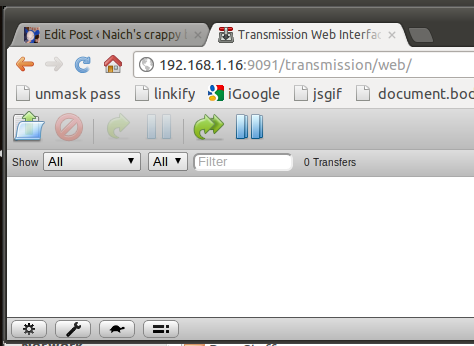
    Point your web browser at http://your_pi’s_address:9091 and you should see something like this:

    But probably not as squished.  I wanted to get all the icons in the screenshot.  But let’s not wander away from the point that you now have a working Bittorrent client on your Pi.  Give yourself a pat on the back and put the kettle on for a celebratory cup of tea.

    But there is a slight problem.  Click on the spanner and look at “Download to:” to see where your torrents will be put.  It’s something like “/var/lib/transmission-daemon/download/buried/so/deep/youll/never/find/it/again/”.  Wouldn’t it be better to have it somewhere a bit more memorable, maybe even on a memory stick so you could take it out of your Pi and take it with you?  We can do both.  Change the “Download to: ” location to /mnt/downloads and continue to the next chapter, where we’ll be setting it all up…

    Continued here.

  • Keeping it up to date (given up with the Pi puns)

    Continuing from here

    First page here

    7.  Updating your system

    We’ve just got a spot of housekeeping to do before installing some stuff to turn your pi into something useful.  We are going to do a system update to make sure we are running the latest version of everything.  And I mean everything.  The update will not only update the operating system, but all your installed software.  All your Pi’s software comes from a “repository” on the internet of pre-compiled software packages, created by the people who made the Raspbian distribution – over 35,000 packages in total, covering pretty much anything you might want your Pi to do: web server, media server, media streamer, torrent client, DNS, web browser (yes, a text only web browser) and so on.  Each package contains software, configuration files, manual pages, and scripts needed to set the software up after install.  You can install packages from outside the repository or compile your own software, but that is a bit more advanced and everything we need is included in the Raspbian repository.

    Software is maintained on a your Pi’s Debian-based Linux system, Raspbian, with a set of utilities called Apt, which is short for “Advanced Package Tool”.  It keeps a track of all the installed software packages, what version they are, if they need updating, and other packages required by each package.  That last one is important.  Most packages will rely on other packages being installed on your Pi in order to work.  From a programmer’s point of view, there is no point in re-inventing the wheel if you want a feature in your program (let’s call your program “Program A”) that has already been created by someone else in Program B.  The programmer can tell program A to call up Program B when this feature is needed.  Then, when the repository maintainer creates Program A’s package for the Raspbian repository, the maintainer adds a specification to the package that tells Apt to check that the package containing Program B is already installed on the Pi.  If it is then that’s fine and dandy, but if it’s not, Apt will nip off and download Program B’s package too.  Of course, it then has to check if the Program B’s package needs any other packages to be installed on the Pi, download them if they aren’t installed, check those ones…, and so on until all the packages are happy.  Keeping track of all these interlinking packages, each depending on the other (package B is called a “dependency” of package A), would be a nightmare to do yourself, so thank goodness for Apt, which does it all for you.

    You might think that it sounds a bit complicated, but it’s not.  You will soon see how easy it all is to use.  Then you might start feeling sorry for Windows users and the pain they have to go through – finding the software, downloading it (Windows downloads are usually bigger as they don’t have Linux’s dependency system), going through the install procedure and then finding that the installer just splatted a load of crapware all over their PC.  Do not pity them though.  They have chosen their path.  It’s quite similar (and predates by many years) the “App” system used by Apple, Android etc., except it is far more flexible and doesn’t restrict you to one source of packages.

    But back to the updating… Let’s start off by getting a list of software that needs updating.  Type sudo apt-get update and you should see something like this:

    naich@raspberrypi ~ $ sudo apt-get update 
    Get:1 http://mirrordirector.raspbian.org wheezy InRelease [12.5 kB] 
    Get:2 http://archive.raspberrypi.org wheezy InRelease [7,698 B] 
    Get:3 http://mirrordirector.raspbian.org wheezy/main armhf Packages [7,296 kB] 
    ... and so on for a bit... 
    Ign http://mirrordirector.raspbian.org wheezy/rpi Translation-en 
    Fetched 7,388 kB in 48s (151 kB/s) 
    Reading package lists... Done 
    naich@raspberrypi ~ $

    Lovely jubbly.  It’s got a list of all the latest packages.  Let’s process all the packages that need upgrading to a later version.  Type sudo apt-get upgrade:

    naich@raspberrypi ~ $ sudo apt-get upgrade 
    Reading package lists... Done 
    Building dependency tree Reading state information... Done 
    
    The following packages will be upgraded: 
    bash dictionaries-common file idle3 krb5-locales libgssapi-krb5-2 
    libk5crypto3 libkrb5-3 libkrb5support0 liblapack3 liblapack3gf 
    libmagic1 libpulse0 libsystemd-login0 libtiff4 libxapian-dev libxapian22 
    libxml2 libxml2-dev libxslt1-dev libxslt1.1 nfs-common omxplayer 
    python3 python3-minimal tasksel tasksel-data udisks vim-common vim-tiny 
    xserver-common xserver-xorg-core 
    
    32 upgraded, 0 newly installed, 0 to remove and 0 not upgraded. 
    Need to get 23.0 MB of archives. 
    After this operation, 1,183 kB of additional disk space will be used. 
    Do you want to continue [Y/n]?

    Do you want to continue?  You do.  And away it goes, upgrading it’s little silicon heart out.  Very rarely, you might see something like this:

    Configuration file `/etc/skel/.bashrc'
     ==> Modified (by you or by a script) since installation.
     ==> Package distributor has shipped an updated version.
     What would you like to do about it ? Your options are:
     Y or I : install the package maintainer's version
     N or O : keep your currently-installed version
     D : show the differences between the versions
     Z : start a shell to examine the situation
     The default action is to keep your current version.
    *** .bashrc (Y/I/N/O/D/Z) [default=N] ?

    This means that Apt has found a configuration file that been changed since the package was installed.  Unless you have made the change yourself, it’s safest to choose “Y” to install the new version which will be compatible with the updated software. A backup of the old config file will be saved in case the new one doesn’t work so you can examine them later to see the differences and fix them if necessary.

    Warnings can generally be ignored.  Things like this probably don’t mean much to you:

    insserv: warning: current start runlevel(s) (empty) of script `nfs-common' overwrites defaults (2 3 4 5 S).
    insserv: warning: current stop runlevel(s) (0 1 2 3 4 5 6 S) of script `nfs-common' overwrites defaults (0 1 6).

    And to be honest it doesn’t mean that much to me either.  It looks like it’s saying that the nfs server isn’t automatically started on runlevels 2-5 any more.  Possibly.  We aren’t using nfs so we don’t care; we’ll cross that bridge if we come to it.  My Pi seemed to work OK after those warnings, so I didn’t worry about them.  Make a note of warnings, just in case you need to find a problem later, but don’t worry about them unduly.  “warning: ” means something unexpected has happened but Apt can keep going.  Errors, however, can’t be ignored.  “error: ” means something so bad has happened that Apt can’t continue.  If you ever see an error, the best thing to do is to copy and paste it into Google to find someone else who has had the same problem and has hopefully fixed it.

    You want to go through this procedure (“apt-get update” followed by “apt-get upgrade”) every now and again to make sure your system is up to date.  Most updates are due to bugs regarding security and are closing avenues of attack for hackers, so you want to install them.  I do it about once a week.

    There is also another type of upgrade – apt-get dist-upgrade. This upgrades your system to the latest stable release.  This means that it won’t just upgrade your packages for bug fixes and security patches, it will upgrade all your software to the version included in the current stable release of your distribution, as if you downloaded and installed it from scratch.  This is a more serious upgrade and should only be undertaken if you’ve got a bit of spare time to fix anything that might get broken.  You are likely to see those messages about the configuration files and might have to edit upgraded ones to get things working again.  If you start seeing messages during your “apt-get upgrade” that packages have been “held back”, it means that you should probably start thinking about doing a “dist-upgrade”.

    Continued here…