11. Setting up your uPNP media server
A uPNP media server allows you to stream videos from your Pi to any device that can talk to it. A lot of tellies do this these days, along with PS3s, XBoxs, iPads, tablets and your PC. With a server on your Pi, you can watch what you have downloaded on any compatible device in your house without the hassle of moving files or memory sticks about. Let’s rock.
You could try doing an apt-cache search for “upnp server” if you want the practice in finding suitable packages, or I could tell you that the one you want is Mediatomb. So sudo apt-get install mediatomb
naich@raspberrypi ~ $ sudo apt-get install mediatomb
Reading package lists... Done
Building dependency tree
Reading state information... Done
The following package was automatically installed and is no longer required:
 mtools
Use 'apt-get autoremove' to remove it.
The following extra packages will be installed:
 javascript-common libavcodec53 libavformat53 libavutil51 libdirac-encoder0
 libexif12 libffmpegthumbnailer4 libgsm1 libjs-prototype libmozjs185-1.0
 libmp3lame0 libmysqlclient16 libnspr4 libnspr4-0d libschroedinger-1.0-0
 libspeex1 libswscale2 libtag1-vanilla libtag1c2a libtheora0 libva1 libvpx1
 libx264-123 libxvidcore4 mediatomb-common mediatomb-daemon mysql-common
 wwwconfig-common
Suggested packages:
 apache2 httpd speex mysql-client postgresql-client
The following NEW packages will be installed:
 javascript-common libavcodec53 libavformat53 libavutil51 libdirac-encoder0
 libexif12 libffmpegthumbnailer4 libgsm1 libjs-prototype libmozjs185-1.0
 libmp3lame0 libmysqlclient16 libnspr4 libnspr4-0d libschroedinger-1.0-0
 libspeex1 libswscale2 libtag1-vanilla libtag1c2a libtheora0 libva1 libvpx1
 libx264-123 libxvidcore4 mediatomb mediatomb-common mediatomb-daemon
 mysql-common wwwconfig-common
0 upgraded, 29 newly installed, 0 to remove and 0 not upgraded.
Need to get 11.4 MB of archives.
After this operation, 25.2 MB of additional disk space will be used.
Do you want to continue [Y/n]?
It’s the same as when you installed Transmission. Apt tells you what it is going to install and you say Yes. It nips off, installs everything and sets it up. It doesn’t need much configuring either. It’ll work straight away but we’ll make a little adjustment or two. Or three if you own a Samsung TV. Our Samsung TV could connect to the server OK but wouldn’t play the videos. If you have the same problem, the fix for it is here. Read what it says and add the lines to the config file after you have made the following changes:
The configuration file for Mediatomb is /etc/mediatomb/config.xml (note that it’s in /etc, as usual) and is a bit unusual in that it’s an XML file. Let’s not pussyfoot around here. XML is a horrible way to present data and to use it in a configuration file is a crime against humanity. I could rant on for a while but I will spare you that – you have enough problems, being faced with a configuration file in XML format. So, open it up with sudo nano /etc/mediatomb/config.xml and let’s get started. As you can see, it’s nice and easy to read – if you are a robot…
<?xml version="1.0" encoding="UTF-8"?>
<config version="2" xmlns="http://mediatomb.cc/config/2" xmlns:xsi="http://www.$
     Read /usr/share/doc/mediatomb-common/README.gz section 6 for more
     information on creating and using config.xml configration files.
    -->
  <server>
    <ui enabled="yes" show-tooltips="yes">
      <accounts enabled="yes" session-timeout="30">
        <account user="mediatomb" password="mediatomb"/>
      </accounts>
    </ui>
    <name>MediaTomb</name>
... and so on ...
Straight away, you should see something that needs changing. The user interface web page has a default username and password, which is bad. Change that user=”mediatomb” password=”mediatomb” to something else. Or, if you are feeling brave, you can change “accounts enabled” to “no” and you won’t have to log on at all. This is a bad idea if you want to access it from outside your home network.
On the line after “<server>” add <port>49152</port> this forces it to use that port rather than pick one of its own choosing. Done that? CTRL-X, [Y]es you want to save, return to save it over the top of the original.
I’ve set up a download of a config.xml file with all those changes applied to it. Feel free to replace yours with it. The username is “mediatomb”, password is “wibble”. Please change them on your system.
A quick sudo service mediatomb restart and you are done with the setting up. To use the web interface, point your browser at http://your_pi_ip:49152 , log in (if you have to) and you should see this:
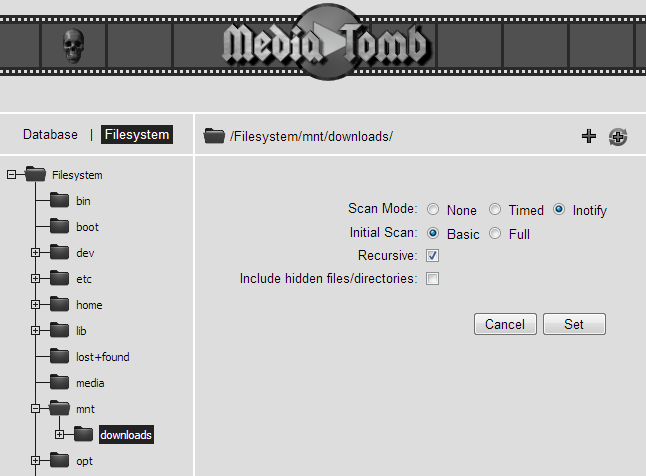
or something like that anyway. To get it to index your media, click on the “Filesystem” tab (next to “Database”), then the cross next to “mnt” (to expand that branch) and “downloads” to highlight it. Over on the right, there will appear a swirly cross which says “Add as autoscan dir” when you hover over it. Click on it to select that directory as one you want Mediatomb to scan. Choose “Inotify” for Scan mode, “Basic” for Initial scan and check “Recursive”. Click on “Set”, it will perform a basic scan and then when you click on the “Database” tab on the left, all your stuff should appear under the “Video” branch. Documentation for the user interface is available for those who want to tinker.
And that’s it. Your Pi should appear as a media server when your TV/PS3/whatever does a scan. Any new downloads should appear automatically but be aware that if you swap the external storage, it might not be rescanned when you plug it back in, so you will have get Mediatomb to do it manually.
Put the kettle on, make a cup of tea and enjoy your videos. That’s pretty much it for now. There’s one more chapter of useful things to know about Linux.


Leave a Reply