Category: Raspberry Pi

  • Taming the PiFM Transmitter (Part 1)

    One of the million things you can do with a Raspberry Pi is using it as an FM radio transmitter. It is stupidly easy; you just attach a 700 mm long wire to pin 7 and install one of the many variants of the original program which was hacked together at a code club meeting. And now you are a radio pirate. This guide is aimed at those who can do the above but don’t know why it might be a bad idea. If you already know about harmonics or know that they are bad but  don’t care why, you can skip to the next post which is about adding a filter to your Pi.
    At this point it is traditional to say that broadcasting without a license is illegal in most countries and doing something like using your Pi to stream internet radio stations to the analogue radio in your kitchen is wrong and makes Eben Upton cry.

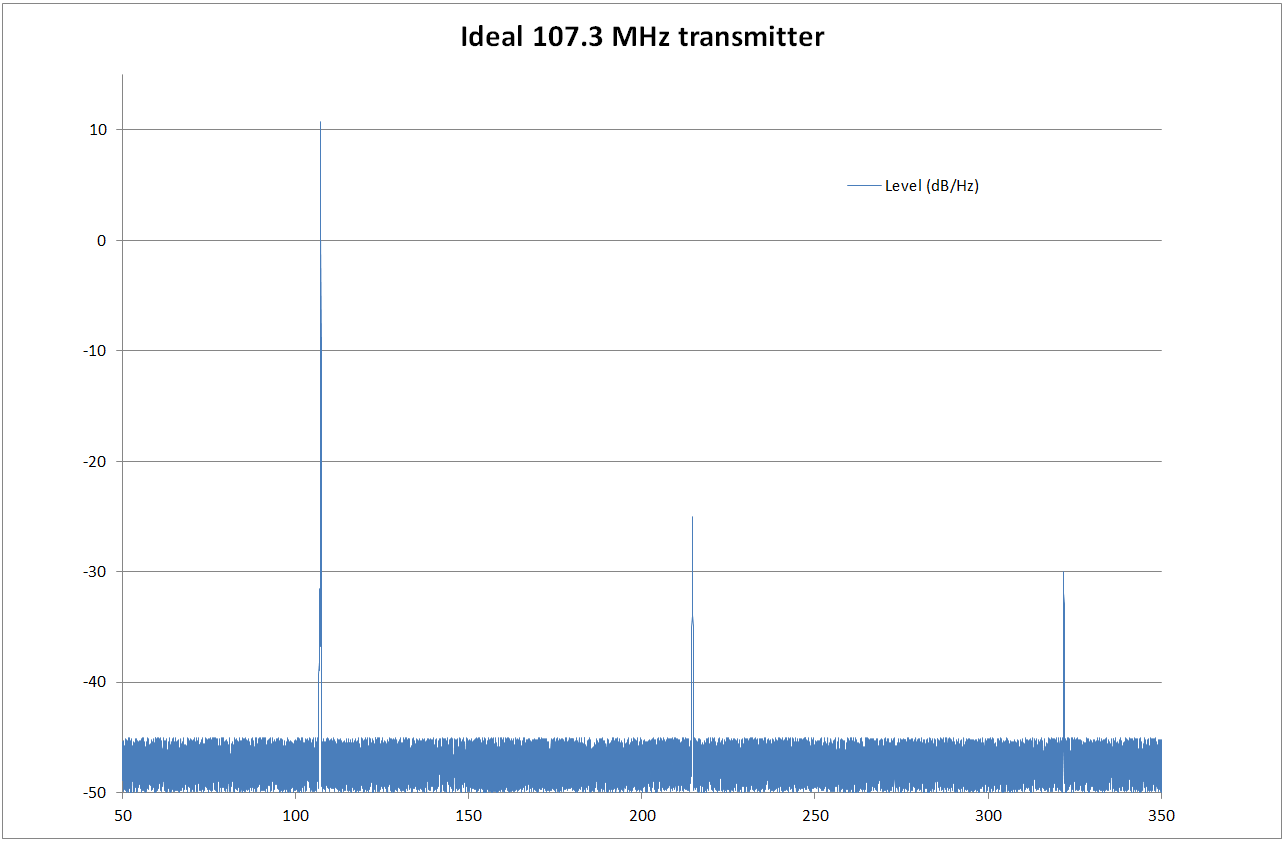
    One thing you will often hear in discussions about Pi radio is that lots of unwanted harmonics are produced on frequencies other than the one you are broadcasting on. These can interfere with legitimate users of that frequency; for example a passing pilot might not want to hear the Crisp Biscuit Breakbeat remix of Josh Wink’s Higher State of Consciousness instead of the control tower telling her where to land. You might think that anything broadcast from your little Pi won’t be powerful enough to interfere with a professional communications system, and you are very probably right. But what exactly is coming from our Pi’s aerial? This is what we would like to see:

    What we would like to see coming out of our Pi. Click for a better view.

    Along the X axis are all the frequencies from 50 MHz to 350 MHz. The Y axis shows the level of the signal at that frequency in dB. If you just clicked on the “dB” link and are none the wiser, the upshot is that the dB makes it easy to compare the relative powers of signals. For example, a +3 dB difference is twice the power and a -3 dB difference is a half the power. So +6 dB means the signal is quadruple the power of whatever you are comparing it to – it’s the same as a +3 dB doubling and another +3 dB doubling. As the dBs go up in linear fashion, the corresponding power goes up exponentially: +3 dB, +6 dB, +9 dB corresponds to x 2 power, x 4 power and x 8 power.

    The graph shows the main peak of our transmission at 107.3 MHz, at about +11 dB, a harmonic at 214.6 MHz at -25 dB and another at 321.9 MHz at -30 dB. These unwanted harmonics are bad, but their levels are a lot lower than the main broadcast frequency. If the harmonic’s signal level is -36 dB compared to the main one, it means it’s about 4000 times weaker and we don’t really need to worry about it, given that the main signal only goes a hundred metres or so. The other unwanted signal is even lower: -41 dB compared to the main signal so I’m not even going to bother to work out the exact value because it is so small. OK, it’s 12,500 times less than the main signal. That won’t even make it out of the room.

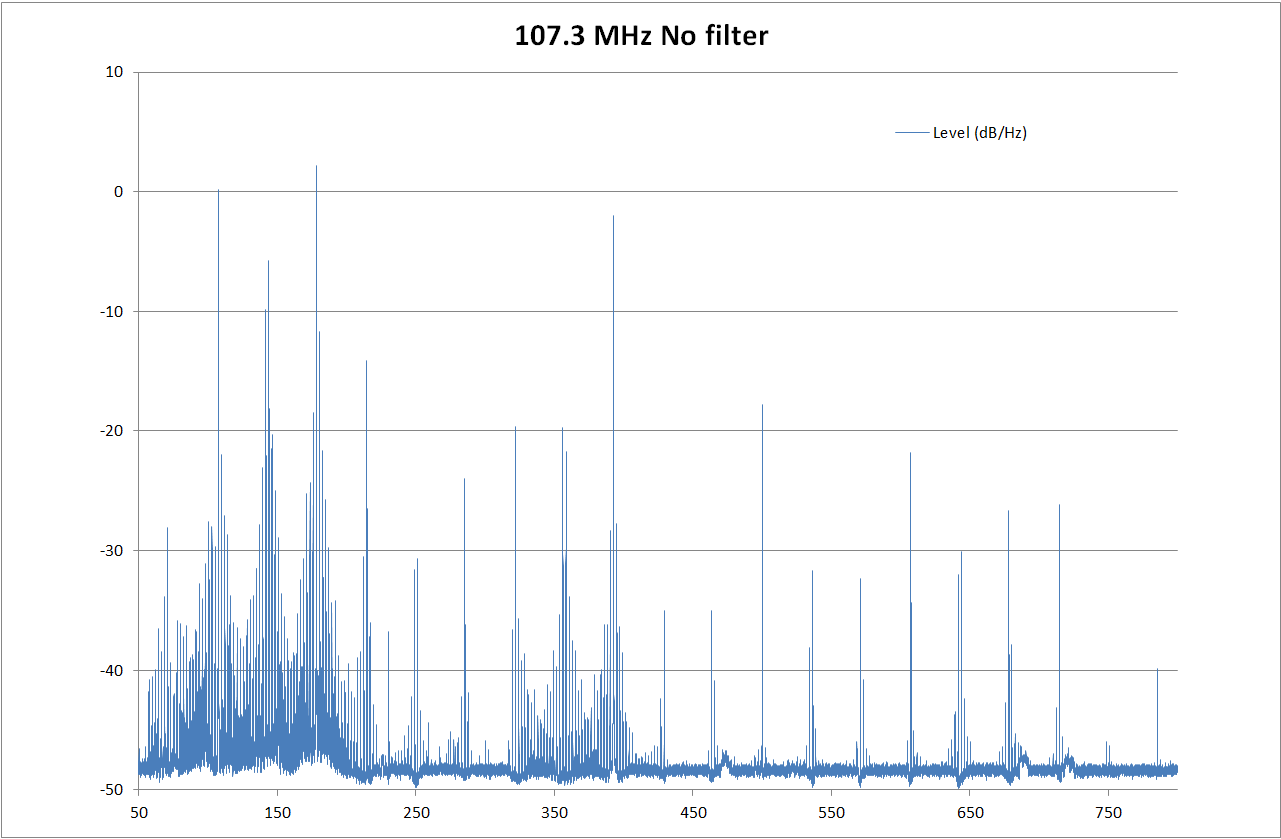
    So that’s our ideal transmitter, with a nice strong signal on the frequency we want and weaker signals on the frequencies of the harmonics we don’t. How does this compare to the actual signal from a Pi? Take a look at this little beauty – it is what’s coming out of my my Pi when it’s broadcasting on 107.3 MHz:

    Actual output from a Pi. Barf.

    It’s spewing crap from 50 MHz to 800 MHz and probably beyond. One of the harmonics is actually more powerful than the frequency we want to transmit on. The signals coming out of that aerial are dirtier than a dog in a field of incontinent cows [todo: change this to something more tasteful]. The neighbours are probably wondering why old skool breakbeat trance music is coming out of their hoover.

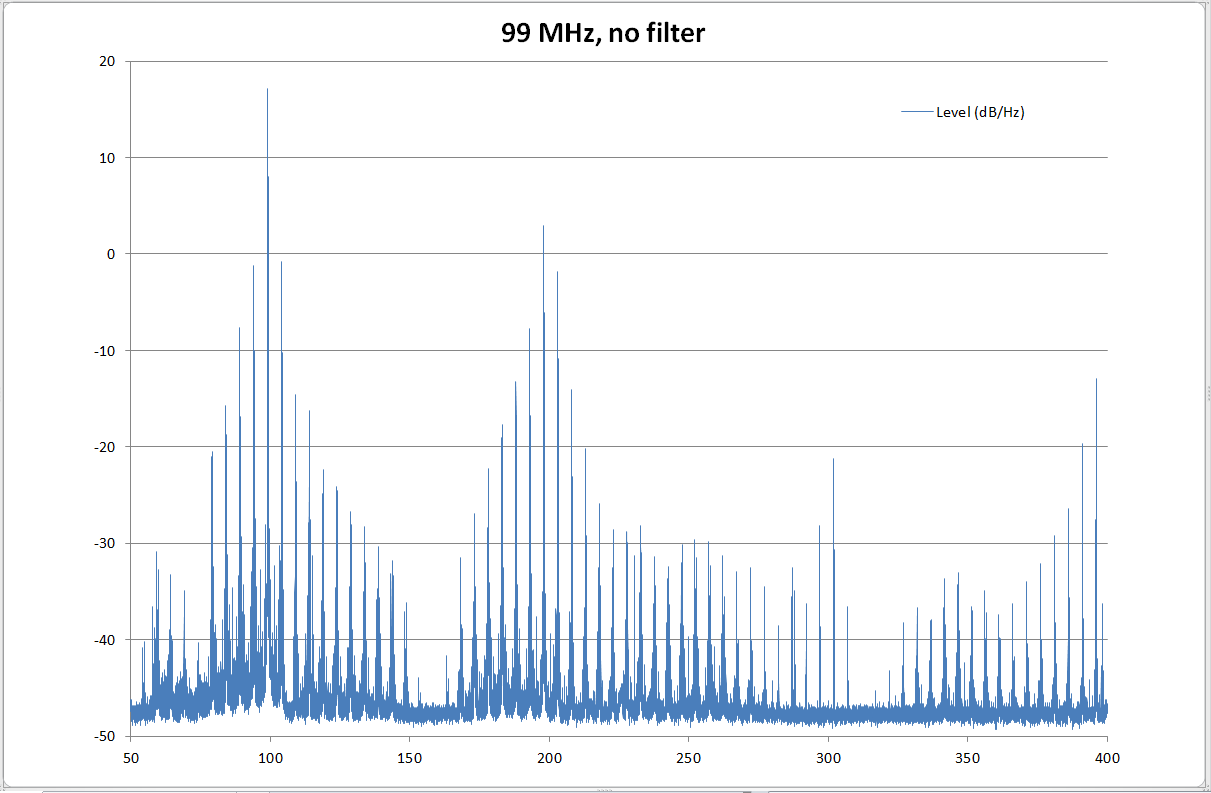
    It gets worse though. The harmonics coming from the Pi change in number, size and position as you change the frequency. Broadcasting on exactly 100 MHz actually produces a graph somewhat similar to the first one, but drop the frequency by 1 MHz to 99 MHz and you get this:

    99 MHz – Craptastic!

    Now that is quite pretty, but it did genuinely start making lines go down my monitor and a hum come out of my speakers. God knows what it was doing to the output electronics in the poor Pi.

    So, before doing anything else, you need to pick a frequency that won’t make music come out of your granddad’s fillings. The cleanest one is 100 MHz, but where I live there’s already a commercial station there, so that was out for me – my little Pi couldn’t compete with the big boys. You don’t want to pick one that’s close to 100 MHz either because they seem to be the dirtiest. Trial and error, picking the gaps between existing stations, seems to be the way to do it. Ideally, you want a spectrum analyser like the one I used to make the graphs, and surprisingly, you can get the hardware for about £20, and use something like this to turn it into a spectrum analyser. At the very least, you could pick a frequency and see how many times your broadcast appears when you tune your radio up and down. As a general rule, the fewer times the better.

    But however carefully you choose your frequency, your Pi will still be broadcasting all over the spectrum and possibly making someone near you very angry. You can improve things by putting a filter on its output, and I can show you how in the next post.

  • Pirpl – it’s another Pirate Radio PLaylist thing!

    Old Radio Station EditedIf you liked the previous Pi-rate Radio Jukebox (and 15 people did!), you won’t want to miss this latest version of it.  It’s basically the same thing, but it runs as a daemon, so you can fire up your favourite tunes using a browser rather than logging in to your Pi to start up scripts.  As usual it’s horribly coded in Bash and features a fuck-ugly interface with no aesthetic considerations whatsoever.  You can insert prettiness yourself if you want to – it’s easy enough because the web pages are done as templates.  All the code is commented to pad it out and make it look more substantial than it is clearly show what is going on.

    This one is called Pirpl and is pronounced “Purple” because it seemed like a good idea at the time.  Something to do with Pirate Radio PLaylists or something – it’s all a bit tenuous, quite frankly.  Anyway, the main improvement is that rather than telling it what to play from the command line,  you pick what you want to listen to from a list on a web page.  As before, you can tell it to play all the MP3s in a directory (and all sub-directories) or give it a list of MP3s to play in a file.  It’ll then play them (in a random order if you want), showing the current tune on a web page and allowing you to skip a track or stop playing and go back to the playlist chooser.

    Other improvements are:

    • Support for MP3 ID tags in both version 1 and version 2 format.  The old player only recognised version 1 tags.
    • Umm… that’s about it really.  The code is slightly better in places, I suppose.  Still the playlist choosing thing is good, isn’t it?

    Quick start

    pirpl
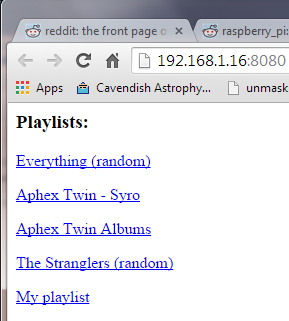
    Nice clean lines. What is not to like?

    Want to get going already?  This is the tarred archive (20.8 kB)

    Download the archive, untar it, edit the “pirpl_conf” file (you’ll see why in the file) and add playlist information to the “pirpl_playlist.conf” (you’ll see how in the file).  Before you can start it up, you need to make sure that the following packages are installed on your Pi:  netcat, sox, id3v2.  If one or more isn’t then, install any missing ones with

    sudo apt-get install netcat sox id3v2

    The program that does the transmitting needs to run as root, so setuid  that bad boy up with:

    sudo chown root:root pifm
    sudo chmod 4755 pifm

    Before you can oscillate any electromagnetic fields, you’ll need to make an aerial for your Pi.  Instructions are in first paragraph of the drivel for pirbj.

    Once you are sorted, start the whole lot up with the command:

    ./pirpl.sh pirpl_conf

    To stop it press CTRL-C.

    The gruesome details

    There are quite a few files that make up pirpl.  This is how they work.

    pirpl.sh

    This is the main program file.  Have a look at it if you want to gaze in wonder at the insane beauty of Bash, but there is no need to edit it.  All the configuration stuff is now in…

    pirpl_conf

    Various settings for things like the names of files, the transmitter frequency and where you installed pirpl.  You probably want to change the transmitter frequency to somewhere empty on your radio’s dial.  You will also need to change PIFM_BASE to the directory where you untarred the files.  The web server port should not be accessible to the outside world.  Other than that, it’s probably best to leave everything else as it is unless you really like reading error messages.

    pirpl_playlist.conf

    This is where you tell pirpl all about your music.  Each line has the path to the playlist or directory containing MP3s, the displayed name of the playlist, and whether to shuffle it.  I’ve left all my playlists in as examples.  Actually, I forgot to delete them and now I can’t be bothered to take them out.  Sorry.  If you are using a playlist rather than a directory, the format is one path to an MP3 per line.

    pirpl_playlist_template.html

    Your browser will show this as a web page so open that link, right click and choose “View page source” to see what is in it.  You have probably worked out for yourself that this is a template file for showing the available playlists, as defined in pirpl_playlist.conf.  The bits in “@@”s are replaced with the information about playlists.  I’m sure you can work out what’s going on in that file.

    pirpl_template.html

    This is the template for showing information about the track that is playing.  It’s the usual stark functionality you get from me, simply because it works and I can’t be bothered to try and make it look nice.

    pirpl_server.sh

    This is the script that does the web server.  It doesn’t do much; it just outputs a file to the browser and filters commands out of the text sent by the browser, storing any it finds in a file which is picked up by pirpl.sh.

    pifm and source/pifm.c

    The program that does the transmitting.  It’s a barely modified version of this one and the source is included if you want to have a look and compile it yourself.

    startwrapper.sh

    The best way to start Pirpl is as a service, when the Pi boots up.  You don’t want to run it as root, so the easiest way to start it as a normal user is to put a command similar to this in your /etc/rc.local file:

    sudo -u naich /home/naich/pirpl/startwrapper.sh

    You could use sudo to start Pirpl directly but you end up with sudo hanging around like a bad smell in your process list.

    In conclusion

    Using this program without the proper license is probably illegal where you are, so don’t use it ever.

  • Pi-rate Radio Jukebox

    p1070168Note: there is an update to this post.

    There is a nice hack for a Raspberry Pi where you can turn it into an FM transmitter.  While this is illegal in most countries, the range is quite limited so it’s fairly unlikely you’ll go to prison. The only hardware needed is your Raspberry Pi and a piece of wire attached to pin 7 (GPIO 4) of the GPIO connector.  The length of the wire depends on the frequency you are transmitting on – roughly speaking, it should be 299/(frequency x 4) metres long.  So 103 MHz is 725 mm.  Or if you are using inches, 299/(frequency x 0.1016) inches.

    It’s very easy to transmit internet radio using just one line of Bash but if, like me, you have a few thousand MP3s , there’s no quick and dirty way to pump them out to the transmitter.

    Until now.  Behold the PIrate Radio Juke Box (pirjb). If you can think of a better name for it, please leave a comment.  A couple of Bash scripts, a minor alteration to the pifm code and a reckless disregard for radio licensing regulations is all that is needed to listen to your collection on any FM radio.   You can repeat and shuffle with either a playlist of MP3s in a file or point it to the directory the MP3s live in and it’ll scan them and make its own playlist.

    Also included is a web server to show you the currently playing track.  Using your browser, you can skip to the next track or shut everything down and turn the transmitter off.  Note that you can’t turn it back on with the web interface yet.  That’s the next thing on the to do list.  You can get to the page by going to http://your_pi_address:8080/  The “8080” is set in the pirjb.sh file, at the top.

    Note that I do not condone or encourage the use of transmitting equipment without the proper license.  This article is presented purely as an exercise in theoretical programming.  Your statutory rights are not affected.  Your home may be at risk if you set fire to the curtains.

    Setting up

    You need to have the following packages installed: sox, netcat, mp3info.  Use

    sudo apt-get install sox netcat mp3info

    to install them.

    Copy the pirjb archive to an empty directory on your Pi and extract the files with

    tar zxf pirjb.tgz

    You need to edit pirjb.sh.  The top few lines are where things like the transmission frequency, path to the scripts and the port for the web server are defined.  There is also a line for the compander settings for sox in order to have an AGC.  If you didn’t understand that last sentence, don’t change that line.  I’ve also included the source for the pifm binary included in the archive.  There is a very minor change to it from this one – calling it with no parameters turns off the transmitter.  Please do compile it and use it instead of the binary I’ve put in the archive.  You shouldn’t really be running binaries from random geezers on the interwebs anyway.  And I am sometimes quite random.

    You need to make pifm run as root using setuid in order for the transmitter to work.  Do this with:

    sudo chown root:root pifm
    sudo chmod 4755 pifm

    To run it use:

    pirjb.sh -d <directory name>  or
    pirjb.sh -p <playlist>

    Switches are -s to shuffle the track order, -r to repeat the playlist indefinitely.  The playlist file should have the full path of each mp3 you want to play per line, i.e.

    /home/naich/music/Wombles Christmas Special/01 Wombling Christmas.mp3
    /home/naich/music/Napalm Death/Scum/Human Garbage.mp3
    … and so on.

    Have fun playing with it and do not use it because it is illegal to do so.

    Files included in the archive:

    • pifm : The transmitter binary
    • pirjb.sh : The jukebox script.  Edit the first few lines for your system.
    • pirjb_webserver.sh : The webserver script.  No need to edit it.
    • pirjb_template.html : The template for the web server page.  See pirjb_webserver.sh for information about using it.  Or just look at the file itself and have a guess.  It’s not hard to see what’s going on.
    • source/pifm.c : The source for pifm.  Compile with g++ -O3 -o pifm pifm.c then copy over the top of pifm.  Don’t forget to chown and chmod the compiled program.
  • Miscallaneous Wibble

    This post is part of a short series of tutorials for people who are new to using their Raspberry Pi.  It will make more sense if you start at the beginning.

    Continued from here.

    First page here

    12.  Some other useful bits and bobs

    Firstly, let me say that Linux is a huge subject and I’m only scratching the surface here.  Also, my knowledge on the subject is not that great; I know enough to get by and Google for everything else.  Secondly, all this huge operating system is contained within the 2GB SD  card plugged into your Pi.  That’s about £30 of hardware to create what used to be called a mainframe computer, and if you aren’t impressed by that, you haven’t understood how much your Pi can do.  Here are some bits and bobs that you might find useful as you learn more.

    12.1  Pipe to your grep

    Pipes were briefly mentioned earlier, as a way to stop text whooshing off the top of your screen by appending |more to the end of a command.  Here is a brief, incomplete and misleading explanation of how they work.

    It’s in the nature of computers that programs take something in, do something and then put something out.  A program with no inputs or outputs doesn’t do much, after all.  You might think that command line programs take their data in from the keyboard and put it out to the screen but they actually talk to the streams, stdin and stdout – which you can think of as being like a plug and socket, one at each end of the program, through which data is poured.  It is the shell (Raspbian uses “bash” by default) that acts as an interface between you and the computer, linking the keyboard to the stdin stream and the screen to the stdout stream.  Thanks to the standardised way data is pumped in and out of programs, you can join them together so the output of one program becomes the input of another.  This is done with a “pipe” – | which is simply placed between the programs so that the data flows from left to right.  Examples will probably make more sense than words.

    “grep” is a program which searches for words through whatever text is put into it.  There are many ways to use it; like searching through files for a word – let’s find lines containing the word “transmission” in the log file for dpkg (which is used by Apt):

    naich@raspberrypi ~ $ grep transmission /var/log/dpkg.log
    2012-08-06 12:39:49 install transmission-common:all <none> 2.52-3
    2012-08-06 12:39:49 status half-installed transmission-common:all 2.52-3
    2012-08-06 12:39:49 status half-installed transmission-common:all 2.52-3
    ... and so on ...

    grep can also take its input from stdin (it automatically does this if you leave the filename off the end of the command), with a pipe.  In this example, “cat filename” prints the contents of the file “filename” which is then piped to grep which prints lines containing “transmission”:

    naich@raspberrypi ~ $ cat /var/log/dpkg.log | grep transmission
    2012-08-06 12:39:49 install transmission-common:all <none> 2.52-3
    2012-08-06 12:39:49 status half-installed transmission-common:all 2.52-3
    2012-08-06 12:39:49 status half-installed transmission-common:all 2.52-3
    ... the same stuff as above ...

    But it’s still whooshing off the screen, so let’s take the output of “grep” and pipe it to “more” (no filename after the “more” command makes it read from stdin), which paginates it:

    naich@raspberrypi ~ $ cat /var/log/dpkg.log | grep transmission | more
    2012-08-06 12:39:49 install transmission-common:all <none> 2.52-3
    2012-08-06 12:39:49 status half-installed transmission-common:all 2.52-3
    ...
    2012-08-06 12:40:01 status unpacked transmission-daemon:armhf 2.52-3
    --More--

    Or we could use “wc” to count the number of times it appears.  As with “grep” and “more”, leaving off a filename makes wc read text from stdin rather than a file.  “wc -l” counts the number of lines stuffed into its stdin:

    naich@raspberrypi ~ $ cat /var/log/dpkg.log | grep transmission | wc -l
    31
    naich@raspberrypi ~ $

    All these programs have man page help, by the way.  grep is probably the most useful tool in the Linux toolbox so it’s worth finding out about it.  Also read up about redirection, which is a related subject.

    12.2  Processes, and how to kill them

    All programs that run on the Pi (known as “processes”) – autonomous daemons, interactive programs and even the program that boots it, have two things – a unique ID number (process ID or “pid”) and a user who owns it (user ID or “uid”).  Well, obviously they have more than two things, but these two are the most important.

    The pid is a unique number between 1 and 32768.  Each process gets a pid when it starts which is one more than the previous one assigned, unless it’s already taken, in which case the next higher one is assigned.  The numbers wrap round to 2 (1 is always used by the “init” process) when they hit 32768.

    The process also has a user ID (uid), the same as one of the users on the system, as if the user had started the process himself.  The process inherits the identity of the user, writing files in his name for example, and has the same permissions to read, write and execute files as that user.  So a process running as “root”, with a uid of 0 can do anything.  Processes that don’t need to run as root tend to run as their own user, in order to sand box them into their own little world.  You can see this, for example with Transmission, which runs under the uid of 106 – debian-transmission.

    You can get a list of processes currently running on your Pi with the “ps” command:

    naich@raspberrypi ~ $ ps -ef
    UID        PID  PPID  C STIME TTY          TIME CMD
    root         1     0  0 Aug20 ?        00:00:14 init [2]
    root         2     0  0 Aug20 ?        00:00:00 [kthreadd]
    root         3     2  0 Aug20 ?        00:00:09 [ksoftirqd/0]
    ... lots of processes ...
    106       2382     1  0 Aug21 ?        00:22:56 /usr/bin/transmission-daemon --c
    107       3527     1  0 Aug23 ?        00:13:52 /usr/bin/mediatomb -c /etc/media
    root      3860  1949  0 11:35 ?        00:00:00 sshd: naich [priv]
    naich     3867  3860  0 11:35 ?        00:00:00 sshd: naich@pts/0
    naich     3868  3867  0 11:35 pts/0    00:00:01 -bash
    naich     3941  3868  0 12:27 pts/0    00:00:00 ps -ef
    naich@raspberrypi ~ $

    This shows the user ID (UID), process ID (PID) the process ID of the process which started it (PPID), the start time (STIME), the amount of CPU time it has taken up (TIME) and the command that started it (CMD).  Another, more interactive way to show processes is with the “top” command:

    naich@raspberrypi ~ $ top
    top - 12:41:13 up 3 days, 16:25,  1 user,  load average: 0.00, 0.01, 0.05
    Tasks:  57 total,   1 running,  56 sleeping,   0 stopped,   0 zombie
    %Cpu(s):  1.3 us,  1.6 sy,  0.0 ni, 95.4 id,  0.0 wa,  0.0 hi,  1.6 si,  0.0 st
    KiB Mem:    220592 total,   209612 used,    10980 free,     7192 buffers
    KiB Swap:   102396 total,      568 used,   101828 free,   163588 cached
    
      PID USER      PR  NI  VIRT  RES  SHR S  %CPU %MEM    TIME+  COMMAND
     2382 debian-t  20   0 43732  11m  896 S   1.0  5.1  23:02.69 transmission-da
     3945 naich     20   0  4616 1348 1028 R   1.0  0.6   0:00.22 top
     3527 mediatom  20   0  152m 9.9m  800 S   0.3  4.6  13:53.06 mediatomb
     3867 naich     20   0 10524 1768 1056 S   0.3  0.8   0:01.54 sshd
    ... and so on ...

    The “%CPU” and “%MEM” show the amount of CPU time and system memory each process is using at this moment and is useful in catching processes that are running out of control.  Press “H” to see the help page or “Q” to quit.  If you need to stop a process running and can’t find a way to do it nicely (with “service process stop”, for example), then you can kill it with kill.  Let’s make a process and kill it.

    naich@raspberrypi ~ $ sleep 600 &
    [1] 3984
    naich@raspberrypi ~ $ ps -fu naich
    UID        PID  PPID  C STIME TTY          TIME CMD
    naich     3867  3860  0 11:35 ?        00:00:01 sshd: naich@pts/0
    naich     3868  3867  0 11:35 pts/0    00:00:01 -bash
    naich     3984  3868  0 12:47 pts/0    00:00:00 sleep 600
    naich     3986  3868  0 12:47 pts/0    00:00:00 ps -fu naich

    “sleep” is a program that does nothing for the number of seconds you tell it.  The “&” at the end means run it in the background, like a daemon, rather than interactively.  Here you tell it to do nothing for 10 minutes and then then you get a list of the processes you are running.  See the one with PID 3984 (your pid will be different)?  That’s the sleeping one we are going to creep up on and kill.  Brutal.

    naich@raspberrypi ~ $ kill 3984
    [1]+  Terminated              sleep 600
    naich@raspberrypi ~ $ ps -fu naich
    UID        PID  PPID  C STIME TTY          TIME CMD
    naich     3867  3860  0 11:35 ?        00:00:01 sshd: naich@pts/0
    naich     3868  3867  0 11:35 pts/0    00:00:02 -bash
    naich     3985  3868  0 12:51 pts/0    00:00:00 ps -fu naich
    naich@raspberrypi ~ $

    RIP 3984.  Poor thing never knew what hit it.  If you are killing it because it has locked up, then you might need to use a bit more force.  If politely asking it to die with kill doesn’t work, use kill -9 to guarantee you’ll finish it off.

    12.3  Symbolic links

    Symbolic links allow more than one filename to point to the same file or directory.  Similar to (and naturally predating) the Windows “shortcut”, they allow you to use a filename to point to another file or directory in a different place.  They come in two types – hard links and soft links.  A hard link creates a filename that refers to the physical location of the data.  It will appear as a normal file but shares the same data as the file it is linked to.  The more common type is a soft link, which appears as “linkname -> original_file” in long listings.  Example:

    naich@raspberrypi ~ $ mkdir wibble
    naich@raspberrypi ~ $ echo hello >wibble/linktest.txt
    naich@raspberrypi ~ $ ln -s wibble/linktest.txt softlink
    naich@raspberrypi ~ $ ls -l
    total 4
    lrwxrwxrwx 1 naich naich   19 Aug 24 14:22 softlink -> wibble/linktest.txt
    drwxr-xr-x 2 naich naich 4096 Aug 24 14:21 wibble
    naich@raspberrypi ~ $ cat softlink
    hello
    naich@raspberrypi ~ $ rm softlink
    naich@raspberrypi ~ $ ls -l wibble/
    total 4
    -rw-r--r-- 1 naich naich 6 Aug 24 14:21 linktest.txt
    naich@raspberrypi ~ $

    First we make a directory called “wibble”, then create a file in it (linktest.txt) with some text in it.  ln -s wibble/linktest.txt softlink creates a soft link to “wibble/linktest.txt” called “softlink”.  We demonstrate that “softlink” can be used as a real file by outputting the contents with cat softlink.  Then we remove the softlink with rm softlink and show that the original file remains.

    Softlinks to directories can cause all sorts of hilarious confusion if you get a bit lost:

    naich@raspberrypi ~ $ ln -s / subdirectory
    naich@raspberrypi ~ $ cd subdirectory/home/naich/subdirectory/home/naich
    naich@raspberrypi ~/subdirectory/home/naich/subdirectory/home/naich $ pwd
    /home/naich/subdirectory/home/naich/subdirectory/home/naich
    naich@raspberrypi ~/subdirectory/home/naich/subdirectory/home/naich $

    Eek!

     12.4  Everything else

    Some other other useful things to know about.

    There is no on switch or reset button on the Pi, so we use the “shutdown” command to reboot or halt.  Options are “-r” to reboot or “-h” to halt before turning it off.  You also specify a time to do it at, or “now” to do it immediately.

    naich@raspberrypi ~ $ sudo shutdown -r now
    
    Broadcast message from root@raspberrypi (pts/1) (Fri Aug 24 14:02:39 2012):
    The system is going down for reboot NOW!
    naich@raspberrypi ~ $

    You can also use the commands halt to halt and reboot to wipe the SD card clean.  Nah, just kidding.  It reboots the Pi.

    For file manipulation (stop sniggering at the back), the commands are mv (move), cp (copy), rm (remove), mkdir (make directory), rmdir (remove directory).  This page explains them in english.

    Get information about the filesystem with the commands df and du.  df shows how full the filesystems are:

    naich@raspberrypi ~ $ df -h
    Filesystem      Size  Used Avail Use% Mounted on
    rootfs          3.6G  1.4G  2.1G  41% /
    /dev/root       3.6G  1.4G  2.1G  41% /
    tmpfs            22M  208K   22M   1% /run
    tmpfs           5.0M     0  5.0M   0% /run/lock
    tmpfs            44M     0   44M   0% /tmp
    tmpfs            10M     0   10M   0% /dev
    tmpfs            44M     0   44M   0% /run/shm
    /dev/mmcblk0p1   56M   34M   23M  61% /boot
    /dev/sda1       7.5G  2.0G  5.6G  27% /mnt/downloads

    du shows the amount of hard disk space used in a directory and all those under it:

    naich@raspberrypi ~ $ du -h /etc
    132K    /etc/console-setup
    8.0K    /etc/rc4.d
    8.0K    /etc/dpkg/origins
    ... and on and on ...
    24K     /etc/gconf
    3.8M    /etc
    naich@raspberrypi ~ $

    Finally, for the moment, check out uptime.  This shows how long it has been since the last reboot.  This is the geek equivalent of comparing penis size, so make sure you have at least a month’s worth of uptime before even mentioning it to anyone, let alone bragging about it.

    naich@raspberrypi ~ $ uptime
     15:24:09 up  1:21,  2 users,  load average: 0.00, 0.01, 0.05
    naich@raspberrypi ~ $

    Yeah, an hour and 21 minutes is not going to impress the ladies.  In my defense, I did have to reboot to get a screenshot earlier.  And it’s very cold in here.

    12.4  Further reading