Author: Naich

  • Torrents of Pi

    Continued from here

    First page here

    8.  Installing a Bittorrent Client

    I don’t know about you, but I want to install a Bittorrent client on your Pi, and I’ll tell you why.  If your PC uses a wireless router and you use Bittorrent, you will probably find that the Bittorrent traffic over your network utterly clobbers your PC’s connection, making the internet virtually unusable.  You also have to leave your PC on overnight when downloading large files, like Linux distributions or the many legal video torrents that exist.  Furthermore, once your torrent has finished, you have to leave the bandwidth-hogging Bittorrent program running in order to get any sort of honourable ratio.

    Running a Bittorrent client on your Pi, plugged directly into the router, solves all these problems.  In fact, the whole setup is so unobtrusive that I’ve occasionally forgotten I’ve been seeding something and discovered I’ve worked up an enormous ratio.  Fnar fnar.  Sorry.  It also allows something else – you can log into your bittorrent client from any PC, even from outside your home network.  Say you are at work, browsing around at lunchtime, when you remember there is a perfectly legal film you want to watch this evening.  Logging in from your work’s PC, you can tell your Pi to start downloading it and by the time you get home, your film will be waiting for you.

    So let’s find a Bittorrent client to install.  Shall we fire up Google?  No.  We don’t need to do that.  We can search the repository for Bittorrent clients using the “apt-cache” command like this: apt-cache search bittorrent client.  Note that you don’t need to sudo it because you aren’t installing anything yet.  The “apt-cache search” bit searches for whatever you put after it.

    naich@raspberrypi ~ $ apt-cache search bittorrent client
    apt-transport-debtorrent - an APT transport for communicating with DebTorrent
    aria2 - High speed download utility
    azureus - BitTorrent client
    ... loads and loads and loads ...
    transmission - lightweight BitTorrent client
    transmission-cli - lightweight BitTorrent client (command line programs)
    transmission-common - lightweight BitTorrent client (common files)
    transmission-daemon - lightweight BitTorrent client (daemon)
    transmission-dbg - lightweight BitTorrent client (debug symbols)
    transmission-gtk - lightweight BitTorrent client (GTK interface)
    transmission-qt - lightweight BitTorrent client (Qt interface)
    unworkable - efficient, simple and secure bittorrent client
    vuze - Multimedia BitTorrent client
    naich@raspberrypi ~ $

    Spoiled for choice, aren’t we?  What we want is one that will happily do its own thing without any input from a human and doesn’t need a GUI.  In Linux, a program that runs in the background without requiring human interaction is called a “daemon”.  If you take a look at the list, two packages fit the bill – “deluged” and “transmission-daemon”.  We’ll use the latter.  Let’s download it, install it, set it up, and run it with 4 words: sudo apt-get install transmission-daemon.

    naich@raspberrypi ~ $ sudo apt-get install transmission-daemon
    Reading package lists... Done
    Building dependency tree 
    Reading state information... Done
    The following extra packages will be installed:
     libcurl3-gnutls libminiupnpc5 libnatpmp1 minissdpd transmission-cli
     transmission-common
    Suggested packages:
     natpmp-utils transmission-gtk
    The following NEW packages will be installed:
     libcurl3-gnutls libminiupnpc5 libnatpmp1 minissdpd transmission-cli
     transmission-common transmission-daemon
    0 upgraded, 7 newly installed, 0 to remove and 0 not upgraded.
    Need to get 1,905 kB of archives.
    After this operation, 4,173 kB of additional disk space will be used.
    Do you want to continue [Y/n]?

    Do you see all those dependencies that will be installed as well?  Apt is also suggesting other packages that aren’t needed but might be useful.  You want to continue.  Things going up the screen…  Done yet?  Did you notice this line?

    [ ok ] Starting bittorrent daemon: transmission-daemon.

    You are now running your bittorrent client.  It will automatically start up every time your Pi starts, so you don’t even have to remember to restart it when you reboot.  Isn’t that nice?  Come on – that is pretty cool isn’t it?

    So let’s use it.  Transmission comes with a built in web server to use as an interface.  You use it by putting this into your browser: “http://your_pi’s_ip_address:9091″  – that’s a colon and 9091 after the address, no slashes.  You should see this:

    403: Forbidden

    Unauthorized IP Address.
    Either disable the IP address whitelist or add your address to it.
    If you’re editing settings.json, see the ‘rpc-whitelist’ and ‘rpc-whitelist-enabled’ entries.
    If you’re still using ACLs, use a whitelist instead. See the transmission-daemon manpage for details.

    This is correct.  As a general rule, installed packages will be set up in a safe way, so that nasty people (including you) can’t use it.  You will need to edit the configuration file to relax its security enough that you can use it.  Full instructions on how to do it are here: https://trac.transmissionbt.com/wiki/EditConfigFiles  but let’s just get it going quickly for now.  Transmission is a bit unusual in that it overwrites its configuration files when it exits.  This isn’t normal and caused me much confusion for a while because I’d edit the configuration, restart Transmission and it wouldn’t work because all my changes were overwritten.  So let’s stop Transmission before we edit the file with sudo service transmission-daemon stop:

    naich@raspberrypi ~ $ sudo service transmission-daemon stop
    [ ok ] Stopping bittorrent daemon: transmission-daemon.
    naich@raspberrypi ~ $

    You can probably work out what is going on there.  Now edit the configuration file.  It’s in the “/etc” directory, (along with all the other configuration files), in its own directory.  If you want to find a configuration file for a daemon, look in “/etc” – it’ll be there, either in its own directory or as a file.  Type sudo nano /etc/transmission-daemon/settings.json:

    naich@raspberrypi ~ $ sudo nano /etc/transmission-daemon/settings.json

    Now, move the cursor down until you find this part (without the numbers):

    1 "rpc-authentication-required": true,
      "rpc-bind-address": "0.0.0.0",
      "rpc-enabled": true,
    2 "rpc-password": "{1669ab9b7fdadc2a8a910abf75a60f6c584365e6oRs3weiW",
      "rpc-port": 9091,
      "rpc-url": "/transmission/",
    3 "rpc-username": "transmission",
    4 "rpc-whitelist": "127.0.0.1",
    5 "rpc-whitelist-enabled": true,

    “rpc” means “Remote Procedure Call” and refers to the web server.  Seems a bit odd to call it this as RPCs are generally from computers rather than humans, but what do I know?   When you make changes, make sure you preserve the punctuation: the quotes, colons and commas all need to be in their correct places.  Going through the numbers, leave the unmarked lines alone and change these ones to suit your preferred method of access:

    1. If this is “true” (note that there are no quotes round the word in the config file) then you will be asked for a username and password before you can use the web pages.
    2. This is the password you log in with if 1. is set to “true”.  The default is an impossible-to-guess huge random string.
    3. The username you log in with if 1. is set to “true”.  Default is “transmission” and you should change it if you plan to use a username/password – default usernames are bad.
    4. The comma-separated list of IP addresses that are allowed to use the web page.  A “*” means any number.  If your home network has addresses that all start “192.168…” then you could make this string “127.0.0.1,192.168.*.*” to make sure that only people in your home network can log in.  Leave the “127.0.0.1” in there, as this refers to the Pi itself.
    5. If you set this to “false” then 4 is ignored and anyone can connect from any PC.

    I’d recommend either:

    • Set 1 to “false”, 5 to “true” and make sure that any PC you will access it from is included in the list at 4 or
    • Set 1 to “true”, set the name/password in 2/3 and set 5. to “false”

    The first one doesn’t require a password, but you will be restricted to logging in from only the PCs whose IP numbers are specifically set in 4.  The second allows you to access it from any PC in the world (make sure you set your router’s port forwarding so connections to port 9091 are sent to your Pi’s IP), but you need to have a username/password to stop any Tom, Richard or Harry using it.

    Then start it up again with  sudo service transmission-daemon start:

    naich@raspberrypi ~ $ sudo service transmission-daemon start
    [ ok ] Starting bittorrent daemon: transmission-daemon.
    naich@raspberrypi ~ $

    Point your web browser at http://your_pi’s_address:9091 and you should see something like this:
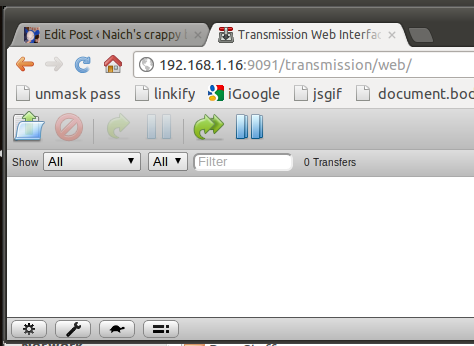
    But probably not as squished.  I wanted to get all the icons in the screenshot.  But let’s not wander away from the point that you now have a working Bittorrent client on your Pi.  Give yourself a pat on the back and put the kettle on for a celebratory cup of tea.

    But there is a slight problem.  Click on the spanner and look at “Download to:” to see where your torrents will be put.  It’s something like “/var/lib/transmission-daemon/download/buried/so/deep/youll/never/find/it/again/”.  Wouldn’t it be better to have it somewhere a bit more memorable, maybe even on a memory stick so you could take it out of your Pi and take it with you?  We can do both.  Change the “Download to: ” location to /mnt/downloads and continue to the next chapter, where we’ll be setting it all up…

    Continued here.

  • Keeping it up to date (given up with the Pi puns)

    Continuing from here

    First page here

    7.  Updating your system

    We’ve just got a spot of housekeeping to do before installing some stuff to turn your pi into something useful.  We are going to do a system update to make sure we are running the latest version of everything.  And I mean everything.  The update will not only update the operating system, but all your installed software.  All your Pi’s software comes from a “repository” on the internet of pre-compiled software packages, created by the people who made the Raspbian distribution – over 35,000 packages in total, covering pretty much anything you might want your Pi to do: web server, media server, media streamer, torrent client, DNS, web browser (yes, a text only web browser) and so on.  Each package contains software, configuration files, manual pages, and scripts needed to set the software up after install.  You can install packages from outside the repository or compile your own software, but that is a bit more advanced and everything we need is included in the Raspbian repository.

    Software is maintained on a your Pi’s Debian-based Linux system, Raspbian, with a set of utilities called Apt, which is short for “Advanced Package Tool”.  It keeps a track of all the installed software packages, what version they are, if they need updating, and other packages required by each package.  That last one is important.  Most packages will rely on other packages being installed on your Pi in order to work.  From a programmer’s point of view, there is no point in re-inventing the wheel if you want a feature in your program (let’s call your program “Program A”) that has already been created by someone else in Program B.  The programmer can tell program A to call up Program B when this feature is needed.  Then, when the repository maintainer creates Program A’s package for the Raspbian repository, the maintainer adds a specification to the package that tells Apt to check that the package containing Program B is already installed on the Pi.  If it is then that’s fine and dandy, but if it’s not, Apt will nip off and download Program B’s package too.  Of course, it then has to check if the Program B’s package needs any other packages to be installed on the Pi, download them if they aren’t installed, check those ones…, and so on until all the packages are happy.  Keeping track of all these interlinking packages, each depending on the other (package B is called a “dependency” of package A), would be a nightmare to do yourself, so thank goodness for Apt, which does it all for you.

    You might think that it sounds a bit complicated, but it’s not.  You will soon see how easy it all is to use.  Then you might start feeling sorry for Windows users and the pain they have to go through – finding the software, downloading it (Windows downloads are usually bigger as they don’t have Linux’s dependency system), going through the install procedure and then finding that the installer just splatted a load of crapware all over their PC.  Do not pity them though.  They have chosen their path.  It’s quite similar (and predates by many years) the “App” system used by Apple, Android etc., except it is far more flexible and doesn’t restrict you to one source of packages.

    But back to the updating… Let’s start off by getting a list of software that needs updating.  Type sudo apt-get update and you should see something like this:

    naich@raspberrypi ~ $ sudo apt-get update 
    Get:1 http://mirrordirector.raspbian.org wheezy InRelease [12.5 kB] 
    Get:2 http://archive.raspberrypi.org wheezy InRelease [7,698 B] 
    Get:3 http://mirrordirector.raspbian.org wheezy/main armhf Packages [7,296 kB] 
    ... and so on for a bit... 
    Ign http://mirrordirector.raspbian.org wheezy/rpi Translation-en 
    Fetched 7,388 kB in 48s (151 kB/s) 
    Reading package lists... Done 
    naich@raspberrypi ~ $

    Lovely jubbly.  It’s got a list of all the latest packages.  Let’s process all the packages that need upgrading to a later version.  Type sudo apt-get upgrade:

    naich@raspberrypi ~ $ sudo apt-get upgrade 
    Reading package lists... Done 
    Building dependency tree Reading state information... Done 
    
    The following packages will be upgraded: 
    bash dictionaries-common file idle3 krb5-locales libgssapi-krb5-2 
    libk5crypto3 libkrb5-3 libkrb5support0 liblapack3 liblapack3gf 
    libmagic1 libpulse0 libsystemd-login0 libtiff4 libxapian-dev libxapian22 
    libxml2 libxml2-dev libxslt1-dev libxslt1.1 nfs-common omxplayer 
    python3 python3-minimal tasksel tasksel-data udisks vim-common vim-tiny 
    xserver-common xserver-xorg-core 
    
    32 upgraded, 0 newly installed, 0 to remove and 0 not upgraded. 
    Need to get 23.0 MB of archives. 
    After this operation, 1,183 kB of additional disk space will be used. 
    Do you want to continue [Y/n]?

    Do you want to continue?  You do.  And away it goes, upgrading it’s little silicon heart out.  Very rarely, you might see something like this:

    Configuration file `/etc/skel/.bashrc'
     ==> Modified (by you or by a script) since installation.
     ==> Package distributor has shipped an updated version.
     What would you like to do about it ? Your options are:
     Y or I : install the package maintainer's version
     N or O : keep your currently-installed version
     D : show the differences between the versions
     Z : start a shell to examine the situation
     The default action is to keep your current version.
    *** .bashrc (Y/I/N/O/D/Z) [default=N] ?

    This means that Apt has found a configuration file that been changed since the package was installed.  Unless you have made the change yourself, it’s safest to choose “Y” to install the new version which will be compatible with the updated software. A backup of the old config file will be saved in case the new one doesn’t work so you can examine them later to see the differences and fix them if necessary.

    Warnings can generally be ignored.  Things like this probably don’t mean much to you:

    insserv: warning: current start runlevel(s) (empty) of script `nfs-common' overwrites defaults (2 3 4 5 S).
    insserv: warning: current stop runlevel(s) (0 1 2 3 4 5 6 S) of script `nfs-common' overwrites defaults (0 1 6).

    And to be honest it doesn’t mean that much to me either.  It looks like it’s saying that the nfs server isn’t automatically started on runlevels 2-5 any more.  Possibly.  We aren’t using nfs so we don’t care; we’ll cross that bridge if we come to it.  My Pi seemed to work OK after those warnings, so I didn’t worry about them.  Make a note of warnings, just in case you need to find a problem later, but don’t worry about them unduly.  “warning: ” means something unexpected has happened but Apt can keep going.  Errors, however, can’t be ignored.  “error: ” means something so bad has happened that Apt can’t continue.  If you ever see an error, the best thing to do is to copy and paste it into Google to find someone else who has had the same problem and has hopefully fixed it.

    You want to go through this procedure (“apt-get update” followed by “apt-get upgrade”) every now and again to make sure your system is up to date.  Most updates are due to bugs regarding security and are closing avenues of attack for hackers, so you want to install them.  I do it about once a week.

    There is also another type of upgrade – apt-get dist-upgrade. This upgrades your system to the latest stable release.  This means that it won’t just upgrade your packages for bug fixes and security patches, it will upgrade all your software to the version included in the current stable release of your distribution, as if you downloaded and installed it from scratch.  This is a more serious upgrade and should only be undertaken if you’ve got a bit of spare time to fix anything that might get broken.  You are likely to see those messages about the configuration files and might have to edit upgraded ones to get things working again.  If you start seeing messages during your “apt-get upgrade” that packages have been “held back”, it means that you should probably start thinking about doing a “dist-upgrade”.

    Continued here…

  • Another pi pun

    Continued from here

    First page here.

    6.  Creating a user

    Now you are starting to get to know your Pi, you’ll want to start making it feel more like home.  Unless your name is “Pi” you will want to add yourself as a user.  Type this:

    adduser naich

    Do I really need to explain that you should replace “naich” with your name?  If you’ve already guessed that and typed it in with your name, you will probably be slightly worried at this point because it will have replied “adduser: Only root may add a user or group to the system.”

    “Root” is the name of the account that has full access to the Linux system.  There are many things that only Root can do, and it’s just as well really; one of the things that only root can do is permanently delete the entire filesystem with one command that doesn’t even bring up an “Are you sure?” type question.  As an ordinary user, you can only screw up your own stuff that you put on there, but as root you are a god that can break everything for everyone forever.  This is why we try to avoid being root as much as possible.  Luckily the root password does not actually exist, so you can never log on as root!  Problem solved, except that sometimes we do want to be able to do rooty stuff, like add users.  There is a way to temporarily become root and that way is sudo.  You might remember typing it in earlier.  Sudo executes a command with root privileges and you simply add “sudo” in front of the command you want to run like this: sudo adduser naich:

    naich@raspberrypi ~ $ sudo adduser naich
    Adding user `naich' ...
    Adding new group `naich' (1000) ...
    Adding new user `naich' (1000) with group `naich' ...
    Creating home directory `/home/naich' ...
    Copying files from `/etc/skel' ...
    Enter new UNIX password:

    Choose a good password for your username but one you will remember.  Write it down if you have to.  Fill in the rest of the details or leave them blank if you want.  You also need to add your new user to the list of people who can use sudo, so type sudo visudo and you should see this:

    #
    # This file MUST be edited with the 'visudo' command as root.
    #
    # Please consider adding local content in /etc/sudoers.d/ instead of
    # directly modifying this file.
    #
    # See the man page for details on how to write a sudoers file.
    #
    Defaults        env_reset
    Defaults        mail_badpass
    Defaults        secure_path="/usr/local/sbin:/usr/local/bin:/usr/sbin:/usr/bin:$
    ... and so on ...

    “visudo” is the command that allows you to modify the list, “sudo” means you are temporarily granted root’s super powers in order to do so.  What visudo actually does is load a text file into an editor called “nano”.  Once nano has loaded the sudoers list, move the cursor down to where it says

    pi  ALL=ALL(ALL) NOPASSWD: ALL

    and change “pi” to your new username.  This means “pi” will no longer be able to sudo, but that doesn’t matter because we are going to delete him soon anyway.  To save the changes and exit nano, press CTRL-X.  If you want to exit without saving your changes press N at the prompt, otherwise press Y and then hit return to save it with the suggested name.  You’ll be using nano a bit, as most configuration is done with plain text files.

    Once you have got back to the “pi@raspberrypi:~$” prompt, type exit to log out and log back in again as you.

    6.1 A Windows diversion

    Windows users: this is the part where we sort out the static IP stuff.  Linux users can skip this bit and go to section 6.2.

    You now need to edit two files – the /etc/network/interfaces file that you couldn’t edit earlier, and the /boot/cmdline.txt file to take out the stuff you put in earlier.  Type sudo nano /etc/network/interfaces and use the text editor (in the same manner as you did to edit the sudoers file) to edit the file as described in section 3 (click to open in a new window/tab).  Save it with CTRL-X, [Y]es, Enter and then type sudo nano /boot/cmdline.txt and remove all the text after “rootwait” that you put in earlier.  Make sure the text is still all on one line and that there is still a newline at the end of the line.  Save the file.  Your Pi is now properly configured with a static IP.

    6.2 Back to our scheduled programming

    Now let’s kill off “pi”.  If you add users with the command “adduser”, you might think you delete them with “deluser”, right?  Nope, it’s userdel.  No idea why.  As a general rule, if you don’t know what command to use, a good place to start is Google – “linux delete user”, returns 205 million pages telling you how to do it.  Anyway, have a go at deleting pi.  I’m not going to tell you how to do it.  See if you can guess.

    Done it?  It was sudo userdel pi, by the way.  Do you like the way it didn’t ask if you really wanted to do that?  Linux assumes you know what you are doing and doesn’t treat you like an idiot by asking you if you really want to do something.  Successful operations for simple things (like copying, moving and deleting files, for example), generally won’t produce any output unless you tell them to.

    If you don’t know how to navigate the Linux filesystem, now is the time to check out Appendix B and learn all about it.  Got it?  Go to the home directory – cd /home  and have a look – ls :

    naich@raspberrypi ~ $ cd /home
    naich@raspberrypi /home $ ls
    naich  pi
    naich@raspberrypi /home $

    As well as your new user’s directory, there is also one called “pi”.  Although you deleted the user pi you didn’t delete his stuff.  You don’t need or want it, so get rid of it.  Type sudo rm -r pi (“rm is short for “remove”),… and it’s gone.  As before, there are no prompts, no “are you sure?”s; it’s gone forever.  If this doesn’t make you a little uneasy, then you might not have grasped how devastating a mistake could be and will probably discover this the hard way at some point!

    Before you go any further, please consider expanding your knowledge about commands  a bit by reading appendix C.  You don’t have to but it might help you understand what’s going on a bit more.  See if you can find out what the “-r” does when you types sudo rm -r pi earlier.

    Continued here…

  • Appendixes

    These are appendixes from the set of posts about setting up and using a Raspberry Pi.

    Appendix A: Selecting an IP Address

    As part of the boot process, your Pi used DHCP to get an IP address from the router. The problem with this is that it is an automated process which is invisible to you unless you log onto your router’s admin page to discover it.  If only the Pi and your router know what its IP address is, you don’t know where to log on to your Pi.  The easiest thing to do is change the IP settings on the Pi’s card to a static address, assigned by you.  That way you know what it is and you know it won’t change.  You don’t need to let the router know which address you have chosen, as the magic IPixies in the Pi sprinkle the router with their Ipixie Dust to let it know automatically.  Well, they do for all I know; I’ve no idea how the router finds out, but it does.

    You need to pick an address for your Pi – something like 192.168.1.16, but you want to pick one that is not in the range of addresses your router assigns for DHCP requests.  If the address you choose is within the router’s DHCP address range there is a possibility that you will end up with two devices using the same address.

    I’m going to leave it to you to find out what range of addresses your router assigns for DHCP and which ones are suitable for static IP addresses.  The settings will be available somewhere in your router’s admin pages.  If fiddling around with your router is out of the question, as a quick bodge you could try finding the IP address of your PC in order to guess a safe non-DHCP range address for your Pi.  Copy the first 3 sets of numbers of your PC’s address and change the last number to a low one if it’s not low or a high one (maximum 254) if it is low.  e.g.

    • Your PC’s IP is 192.168.1.3 so you pick 192.168.1.250 for your Pi
    • Your PC’s IP is 192.168.1.101 so you pick 192.168.1.3 for your Pi

    You also need to know the gateway (the router’s IP address on the LAN) and subnet mask (which will probably be 255.255.255.0 – it usually is for home networks).

    Go back

    Appendix B: The Linux Filesystem

    Here’s a quick and dirty note about the way the Linux filesystem is arranged.  For a better description try this or this.

    You might be used to Windows, with its lame C: drives, D: drives, random assignation of drive letters for plug-in devices, and its pathetic attempts to hide this lameness with My Documents, libraries and other rubbish.  Linux has one hierarchical tree of files, with everything hanging off the root “/” directory.  There are no drive letters or special places; everything – programs, user data, log files, temporary files and even devices, is placed on the same directory tree.  There is a convention as to where different types of file are stored, but let’s have a little wander around and see for ourselves.

    Take a look at the command prompt – “naich@raspberrypi ~ $”  It contains 4 pieces of information; your name and the name of the computer you are on (with an “@” between them), the working directory (~) and the effective user ID ($).  The “$” changes to a “#” if you are currently root – that’s all that does, but it is important to know if your powers are currently elevated to those of the godly root.  The working directory is where you currently are in the directory tree, i.e. it is the directory that a command will take action in if you don’t actually specify which directory you want the command to do its stuff in.  Get it?  No?  An example will demonstrate better than that convoluted jumble of words; type ls:

    naich@raspberrypi: ~ $ ls
    naich@raspberrypi: ~ $

    See anything?  Nope.  ls means list all the files in a directory.  As you did not specify a directory it lists the files in the working directory, which is “~”, and is currently empty.  If you tell it to list files in a different directory it will use that one instead of the working one; type ls /:

    naich@raspberrypi ~ $ ls /
    bin   dev  home  lost+found  mnt  proc  run   selinux  sys  usr
    boot  etc  lib   media       opt  root  sbin  srv      tmp  var
    naich@raspberrypi ~ $

    These are all the files and directories in the root directory “/”.  Try ls /bin – see what is happening there?  You are listing all the files in the “/bin” directory.  This rule also goes for file names.  If you want to access a file but only write a file name, the command or program will look for that file in the working directory.  If you include the directory that the file is in, it will look there instead. This goes for any type of file – data, programs or devices.  Think of your terminal window as psychically sitting on a branch of the directory tree, with everything you type in acting on that branch unless you explicitly specify otherwise.  The location of that branch is the working directory.

    Handy hint – Stuff shooting off the top your screen before you can read it?  Add “ | more” to the end of your command, (e.g. ls /bin | more) to show one page of output at a time.  Scroll to the next page with the space bar or press “Q” to quit.  This works with all commands.  Don’t try to understand how it works for the moment, just consider it magic.

    You can move your terminal around the directory tree with the cd (change directory) command.  Type cd / to move your working directory to the root directory and type ls again.  Now your working directory is “/”, it lists the files there when you don’t explicitly say otherwise.  Try moving to “/bin” and looking at the files there.  Try moving to other places and have a good old poke around.  Even with a basic install there are tens of thousands of files on your Pi, so there’s plenty to look at.  When you are done, move back to your home directory by simply typing cd ~.

    As well as looking at the the prompt, another way to find out the working directory is to type pwd:

    naich@raspberrypi ~ $ pwd
    /home/naich
    naich@raspberrypi ~ $

    Eh?  I thought we were in “~”?  Well, we are.  “~” means “my home directory”, which is “/home/your_username”.  Your home directory is where you put all your stuff and is probably the only directory you can write to.  If you are going to start drawing Windows analogies, it is a bit like “My Documents”.  The “~” provides a reference to where all your stuff is, so using “~/README.txt” refers to README.txt which resides in your home directory, rather than any other README.txt which might be in whatever working directory you happen to be in.

    It’s all relative though.  When you specify a directory to move to, look in, or to find a file in, the location you give is relative to where you currently are – i.e. your working directory.  If you start the directory location off with a “/” or “~/” it doesn’t matter where you are, as the location you are specifying starts at the root or home directory.  These are fixed absolute points on the tree, but miss off the “/” or “~/” from the start of the directory or file and it becomes relative to your working directory.  Type cd /usr to move your working directory to the “/usr” directory.  Do a ls to see the contents.  See that directory called “bin”?  It’s not the one you looked at earlier; that was a directory for general system bin(ary) programs, this one is for user-orientated bin(ary) programs.  Type ls bin.  The files listed are not the ones you saw earlier in “/bin” but are the ones in “/usr/bin”.  Because the “/” is missing from the front of “bin”, the “bin” it is showing you is the one relative to your working directory, which is currently “/usr”.  You can still see the contents of “/bin” (with the slash) by typing ls /bin (with the slash).

    If you understand the concept that everything is relative to the working directory unless you say so, you are ready to know about dots – “..”, “.” and dots at the start of files.

    A double dot is shorthand for “the parent directory”, i.e. the next directory down on the way to the root.  If your working directory is “/home/naich” then typing cd .. will change your working directory to “/home”.  Typing ls .. will list the contents of “/home” and so on.  You can string double dots together as if they were real directories. cd ../.. will move you two directories towards root – from “/home/naich” to “/”.  You can do daft things like cd /home/naich/../../home/naich to end up in “/home/naich”, the first “/home/naich” having been rendered pointless by the two sets of double dots moving you back down to “/” again.

    A single dot means “this directory”, i.e. the current working directory.  That might not sounds useful, seeing as how, by it’s very nature, you are already working in the working directory but it does have its uses.  I’m not going to go in to them here, but you should know about it in case you see it later on.

    Finally, there are hidden files.  These are hidden for convenience not security and are simply files that you don’t care about in the normal scheme of things.  Files like configuration files or log files.  You can hide a file or directory by starting its name with a dot, e.g. “.config_file”.  You have some in your home directory but didn’t see them earlier.  Go home (cd ~) and have a closer look – type ls -a.

    naich@raspberrypi ~ $ ls -a
    .  ..  .bash_history  .bash_logout  .bashrc  .profile
    naich@raspberrypi ~ $

    The “-a” bit is an “option” that tells the “ls” command to show hidden files.  Those hidden files are configuration files that are automatically generated when you create a user and control parameters about the way your terminal works.  Most of the time you don’t need to see them, so they are hidden.  You can also see the “.” and “..”, which show up as directories in their own right.

    Go back

    Appendix C: Commands

    The basic format for doing things from the command line has 3 sections separated by spaces:

    command [-options] [the_thing_you_are_doing_it_to]

    An “option” is a way to modify what the command does.  For example, the default thing for the ls command to do is show the files as a horizontal list, so to list all the files in the root “/” directory:

    naich@raspberrypi ~ $ ls /
    bin   dev  home  lost+found  mnt  proc  run   selinux  sys  usr
    boot  etc  lib   media       opt  root  sbin  srv      tmp  var
    naich@raspberrypi / $

    but if you add the option “-l” (minus lower case L) to the “ls” command it does this:

    naich@raspberrypi ~ $ ls -l /
    total 84
    drwxr-xr-x  2 root root  4096 Aug  6 12:35 bin
    drwxr-xr-x  2 root root 16384 Jan  1  1970 boot
    ... skip a few ...
    drwxr-xr-x 10 root root  4096 Jul 15 19:57 usr
    drwxr-xr-x 11 root root  4096 Jul 15 20:42 var
    naich@raspberrypi / $

    The “-l” means print it in “long” format, i.e. with more information about what sort of file or directory it is (the “d” in “drwxr-xr-x” means directory, don’t worry about the rest for now), who owns it (“root”), the group they are in (root), the size of the file, date it was last modified and its name.  You can have more than one option.  Try ls -lh /.  The “h” means put the file sizes in human readable units.

    naich@raspberrypi ~ $ ls -lh /
    total 84K
    drwxr-xr-x  2 root root 4.0K Aug  6 12:35 bin
    drwxr-xr-x  2 root root  16K Jan  1  1970 boot
    ... and so on

    You could make it show you hidden files (“-a”), in date order (“-t”), but reversed so the latest is at the bottom (“-r”) by using ls -lhatr /

    naich@raspberrypi ~ $ ls -lahtr /
    total 92K
    drwxr-xr-x  2 root root  16K Jan  1  1970 boot
    dr-xr-xr-x 68 root root    0 Jan  1  1970 proc
    drwxr-xr-x 12 root root    0 Jan  1  1970 sys
    drwxr-xr-x  2 root root 4.0K Jun  2 10:25 mnt
    ... etc. ...

    Note that the “Jan 1 1970” comes from boot time, when the Pi doesn’t know what time it is (no real time clock), so it defaults to the earliest time a Unix timestamp can have.

    It would be pretty unreasonable to expect everyone to remember what all the options are, so most commands have help built in, accessible by using either “-h” or “–help” (that’s two dashes there, compared to the one for single letter options).  With ls, “-h” is used for specifying human-readable units, so –help (with the two dashes) is the option to use for help.

    naich@raspberrypi ~ $ ls --help
    Usage: ls [OPTION]... [FILE]...
    List information about the FILEs (the current directory by default).
    Sort entries alphabetically if none of -cftuvSUX nor --sort is specified.
    
    Mandatory arguments to long options are mandatory for short options too.
      -a, --all                  do not ignore entries starting with .
    ... blah blah etc. ...

    Options with two dashes and a word are called “long options”, one dash, one letter ones are “short” options.  Obviously you can’t lump long options together behind the same dashes, so you have to use them seperately, i.e. ls --all --human-readable /.  You can also mix them if you want, i.e. ls -la --human-readable /.

    A huge amount of help is also available from the manual pages residing on your Pi, which contain more verbose instructions.  You use these by typing “man command”, e.g. man ls or man adduser or even man man.  While they are very detailed and available for pretty much every command you’ll use, a) you need to already know what command you want, and b) they aren’t always written in the clearest manner for a beginner.  Don’t be afraid to google for information too – for example, putting “how do i add a user in linux” into google’s search box gives you exactly what you need to know.  You aren’t born with knowledge of how Linux works so you need to find it somewhere.  Start off with the manual pages but if you only understand a few of the words on them, have a google for it.

    Go back